To use an analog joystick for WASD control with an Arduino UNO as HID(Human Interface Device) follow these steps:
-
Download ATMEL Flip
-
Download this zip file and then extract it
Arduino UNO with Joystick for HID Keyboard.zip (5.6 MB) -
Open the .ino file and upload it to your UNO Board
-
Install Flip
-
Get a wire
-
Short the RESET and GND pins (and remove the wires used to short the RESET and GND pins)

-
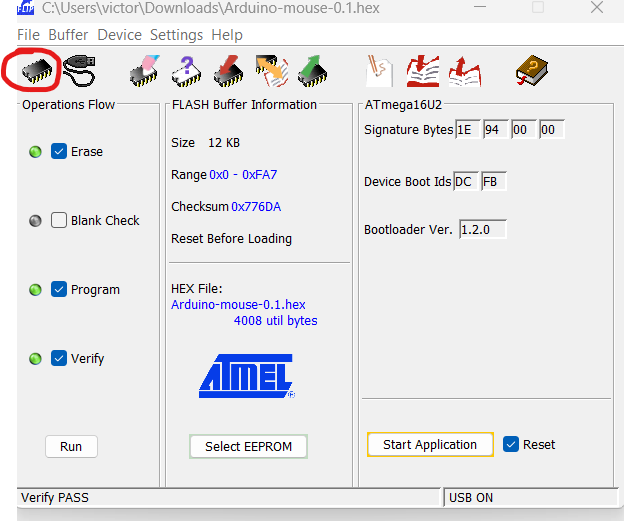
Click on the chip icon
and select ATmega16U2, then press OK -
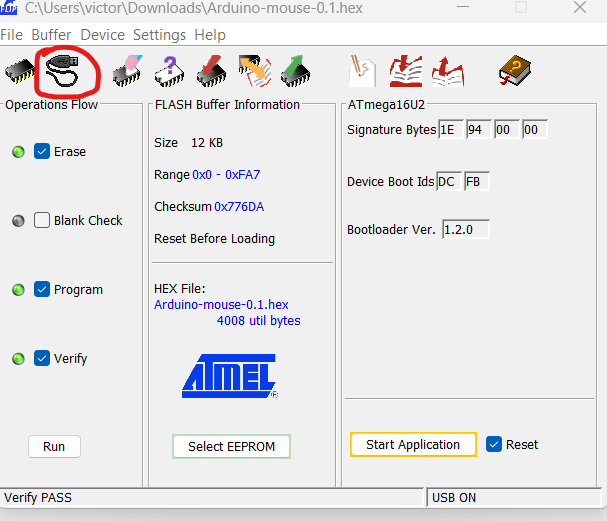
Click on the USB Icon
-
Then select open
-
If it says " AtLibUsbDfu.dll not found" follow the instructions from this video https://youtu.be/Vd0F0XHzchY?si=zbNiO02eQNMB6iOv
-
If it says this
then short the RESET and GND pins again and remove them after you hear a connecting sound from your PC and retry from step 8. -
If no erros and there are tick marks on Erase, Prgram and Verify
then you re good to go -
Select from the menuu bar select File > Load Hex File and browse to extracted zip file and locate the Arduino-keyboard-0.3.hex file and select it
-
Click on the Run option
after some seconds the blue tick marks will be changed to green bubbles, if it happens you are good to go -
Open Device Manager by searching from Start Menu
-
Click on the Arrow on Keyboards and it would open the connected keyboards to your PC
-
Disconnect your UNO from PC and reconnect it and you would see another device which is "HID Keyboard Device", it means the UNO is connected and your PC has recognized it as a HID.
-
Wait for a few seconds before moving the joystick
-
Open Notepad and test it out for yourself.
-
To change the code after changin the UNO to HID, you must short the RESET and GND pins (and remove it after you hear a connecting sound to your PC, then click on the USB icon and click "Open", if there are no errors, then upload the "Arduino-usbserial-uno.hex" file, then click on "Run", then disconnect your UNO and reconnect it and now your UNO has been reset and you can upload code and it will work normally, if you want it to perform different from before after transforming into HID, upload your code and follow the steps all over again.


If you want to use a pushbutton instead of joystick and want to press other keys, follow this tutorial(worked for me) or this one(did not work for me) You can modify the code and the circuit as you want it.
To use an Analog Joystick with an Arduino UNO for Mouse movements(only) as HID follow these steps
- Download and Extract this ZIP file
Arduino UNO with Joystick for HID Mouse.zip (5.6 MB) - Follow the same steps for the HID Keyboard but instead upload the .ino file from HID Mouse folder and upload the "Arduino-mouse-0.1.hex" file
- Test it in any game or just in desktop
My code dosent has some functions but this tutorial has those functions like mouse buttons and maybe more.
If you have any erros and the project dosen't work, follow my steps again carefully with some help from the tutorials I have provided, even if it still dosen't work, start completely again by following the instructions from the tutorials. They work as I have used them earlier and used them in my current codes for reference