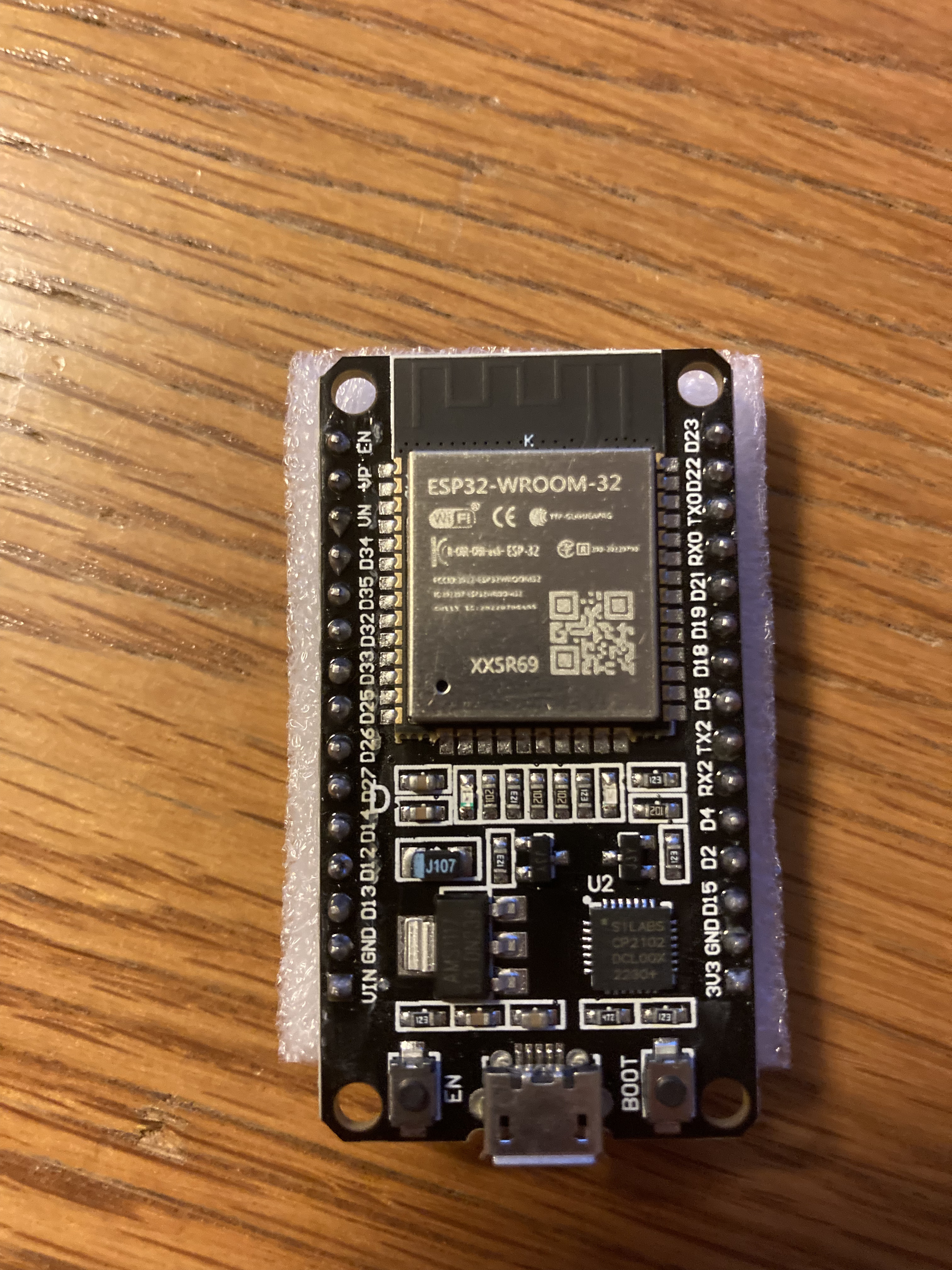
hi I'm using a esp32-wroom-32 and I keep getting this error
A fatal error occurred: Failed to connect to ESP32-S2: No serial data received.
For troubleshooting steps visit: https://docs.espressif.com/projects/esptool/en/latest/troubleshooting.html
Failed uploading: uploading error: exit status 2
Indicates that you have selected a board that uses the ESP32-S2 microcontroller in Arduino IDE. But the ESP32-WROOM-32 uses the ESP32 microcontroller, not the ESP32-S2. The inappropriate board selection might be the cause of the upload failure.
Select Tools > Board > esp32 > ESP32 Dev Module from the Arduino IDE menus and then try uploading again. Hopefully this time it will be successful.
I'm going to ask you to provide the full verbose output from an upload attempt.
This procedure is not intended to solve the problem. The purpose is to gather more information.
Please do this:
Select File > Preferences... (or Arduino IDE > Settings... for macOS users) from the Arduino IDE menus.
The "Preferences" dialog will open.
Uncheck the box next to Show verbose output during: ☑ compile in the "Preferences" dialog.
Check the box next to Show verbose output during: ☐ upload.
Click the "OK" button.
The "Preferences" dialog will close.
Attempt an upload, as you did before.
Wait for the upload to fail.
You will see an "Upload error: ..." notification at the bottom right corner of the Arduino IDE window. Click the "COPY ERROR MESSAGES" button on that notification.
Open a forum reply here by clicking the "Reply" button.
Click the <CODE/> icon on the post composer toolbar.
This will add the forum's code block markup (```) to your reply to make sure the error messages are correctly formatted.
Sketch uses 283072 bytes (21%) of program storage space. Maximum is 1310720 bytes.
Global variables use 20048 bytes (6%) of dynamic memory, leaving 307632 bytes for local variables. Maximum is 327680 bytes.
"C:\Users\jason\AppData\Local\Arduino15\packages\esp32\tools\esptool_py\4.9.dev3/esptool.exe" --chip esp32 --port "COM1" --baud 921600  --before default_reset --after hard_reset write_flash  -z --flash_mode keep --flash_freq keep --flash_size keep 0x1000 "C:\Users\jason\AppData\Local\arduino\sketches\7C1EEB209B4D543F3DEBBD91EE0A0628/sketch_dec31a.ino.bootloader.bin" 0x8000 "C:\Users\jason\AppData\Local\arduino\sketches\7C1EEB209B4D543F3DEBBD91EE0A0628/sketch_dec31a.ino.partitions.bin" 0xe000 "C:\Users\jason\AppData\Local\Arduino15\packages\esp32\hardware\esp32\3.1.0/tools/partitions/boot_app0.bin" 0x10000 "C:\Users\jason\AppData\Local\arduino\sketches\7C1EEB209B4D543F3DEBBD91EE0A0628/sketch_dec31a.ino.bin"
esptool.py v4.8.1
Serial port COM1
Connecting......................................

A fatal error occurred: Failed to connect to ESP32: No serial data received.
For troubleshooting steps visit: https://docs.espressif.com/projects/esptool/en/latest/troubleshooting.html
Failed uploading: uploading error: exit status 2
This error might be caused by having the wrong port selected from the Tools > Port menu in Arduino IDE. I see you have selected COM1. That is typically the internal serial port of the motherboard of the computer, not an Arduino board.
Please perform this experiment to verify that the port you have selected is your Arduino board:
Disconnect the USB cable of the Arduino board from your computer.
Select Tools > Port from the Arduino IDE menus.
Take note of the ports (if any) listed in the menu.
Close the Tools menu. The ports list is only updated when the Tools menu is re-opened, so this step is essential.
Connect the Arduino board to your computer with a USB cable.
Select Tools > Port from the Arduino IDE menus. - If a new port is listed in the menu, that is the port of your Arduino board.
If you saw a new port appear at the last step, select that port from the Tools > Port menu and try uploading again.
If this doesn't solve the problem, please reply here on this forum thread with the answers to the following questions:
While following those instructions, did you see a port in the Tools > Port menu at step (6) that was not present at step (3)?
If you did see a new port, was the upload successful after you selected that port?
Select View > Devices by type from the Device Manager menus.
Open the "View" menu.
If there is a ✓ to the left of the "Show hidden devices" menu item, click on "Show hidden devices" to disable it.
Take note of the contents of the "Other devices" and "Ports (COM & LPT)" sections of the Device Manager tree.
Connect the Arduino board to your computer with a USB cable.
Select Action > Scan for hardware changes" from the Device Manager menus.
Did you see any new device appear in the Device Manager tree after doing this? If so, please tell us where it is located in the tree and what it is named.
You can repeat steps 5-8 multiple times if you are not sure.
Make sure the USB cable is completely plugged into both the Arduino board and the PC.
If that doesn't help, you may have a damaged/defective or charge-only USB cable. Try a different cable.
Either of the above can result in the power connections being made (and thus LEDs lit on the board), but no data connections (and thus no port for the board).
Do you now see a new port appear in Arduino IDE's Tools > Port menu when you connect the board to the computer with the new USB cable? If so, select that port and try uploading again. Hopefully it will be successful this time.
 This procedure is not intended to solve the problem. The purpose is to gather more information.