Hi grenken,
would mind testing with a
different
demo-sketch?
which as a
different wiring
?
I mean this sketch
#include "Arduino.h"
#include "SPI.h"
#include "tft.h"

#define TFT_DC   21    /* Data or Command */
#define TFT_CS   22    /* SPI Chip select */
#define TFT_BL   17    /* BackLight */
#define TFT_SCK  18
#define TFT_MISO 19
#define TFT_MOSI 23
#define TFT_RST  16    /* Reset */
#define TP_IRQ   39
#define TP_CS    16
#define SD_CS     5

#define min(X, Y) (((X) < (Y)) ? (X) : (Y))

TFT tft(0); //0=ILI9341, 1= HX8347D

void setup() {
  pinMode(TP_CS, OUTPUT);
  digitalWrite(TP_CS, HIGH); // disable touchpad
  pinMode(SD_CS, OUTPUT);
  digitalWrite(SD_CS, HIGH); // disable SDcard

  Serial.begin(115200);

  //tft.begin(); //default (21,22,17,18,19,23,16)
  tft.begin(TFT_CS, TFT_DC, TFT_MOSI, TFT_MISO, TFT_SCK, TFT_BL);
  tft.setRotation(1);

  Serial.println(F("Benchmark                Time (microseconds)"));
  delay(10);
  Serial.print(F("Screen fill              "));
  Serial.println(testFillScreen());
  delay(500);

  Serial.print(F("Text                     "));
  Serial.println(testText());
  delay(3000);

  Serial.print(F("Lines                    "));
  Serial.println(testLines(TFT_CYAN));
  delay(500);

  Serial.print(F("Horiz/Vert Lines         "));
  Serial.println(testFastLines(TFT_RED, TFT_BLUE));
  delay(500);

  Serial.print(F("Rectangles (outline)     "));
  Serial.println(testRects(TFT_GREEN));
  delay(500);

  Serial.print(F("Rectangles (filled)      "));
  Serial.println(testFilledRects(TFT_YELLOW, TFT_MAGENTA));
  delay(500);

  Serial.print(F("Circles (filled)         "));
  Serial.println(testFilledCircles(10, TFT_MAGENTA));

  Serial.print(F("Circles (outline)        "));
  Serial.println(testCircles(10, TFT_WHITE));
  delay(500);

  Serial.print(F("Triangles (outline)      "));
  Serial.println(testTriangles());
  delay(500);

  Serial.print(F("Triangles (filled)       "));
  Serial.println(testFilledTriangles());
  delay(500);

  Serial.print(F("Rounded rects (outline)  "));
  Serial.println(testRoundRects());
  delay(500);

  Serial.print(F("Rounded rects (filled)   "));
  Serial.println(testFilledRoundRects());
  delay(500);

  Serial.println(F("Done!"));

  delay(5000);
  printf("ESP32: RAM left %d\n",  esp_get_free_heap_size());
}

void loop(void) {
  for(uint8_t rotation=0; rotation<4; rotation++) {
    tft.setRotation(rotation);
    testText();
    delay(2000);
  }
}

unsigned long testFillScreen() {
  unsigned long start = micros();
  tft.fillScreen(TFT_BLACK);
  yield();
  tft.fillScreen(TFT_RED);
  yield();
  tft.fillScreen(TFT_GREEN);
  yield();
  tft.fillScreen(TFT_BLUE);
  yield();
  tft.fillScreen(TFT_BLACK);
  yield();
  return micros() - start;
}

unsigned long testText() {
  tft.fillScreen(TFT_BLACK);
  unsigned long start = micros();
  tft.setCursor(0, 0);
  tft.setTextColor(TFT_WHITE);  tft.setTextSize(1);
  tft.println("Hello World!");
  tft.setTextColor(TFT_YELLOW); tft.setTextSize(2);
  tft.println(1234.56);
  tft.setTextColor(TFT_RED);    tft.setTextSize(3);
  tft.println(0xDEADBEEF, HEX);
  tft.println();
  tft.setTextColor(TFT_GREEN);
  tft.setTextSize(6);
  tft.println("Groop");
  tft.setTextSize(2);
  tft.println("I implore thee,");
  tft.setTextSize(1);
  tft.println("my foonting turlingdromes.");
  tft.println("And hooptiously drangle me");
  tft.println("with crinkly bindlewurdles,");
  tft.println("Or I will rend thee");
  tft.println("in the gobberwarts");
  tft.println("with my blurglecruncheon,");
  tft.println("see if I don't!");
  return micros() - start;
}

unsigned long testLines(uint16_t color) {
  unsigned long start, t;
  int           x1, y1, x2, y2,
                w = tft.width(),
                h = tft.height();

  tft.fillScreen(TFT_BLACK);
  yield();

  x1 = y1 = 0;
  y2    = h - 1;
  start = micros();
  for(x2=0; x2<w; x2+=6) tft.drawLine(x1, y1, x2, y2, color);
  x2    = w - 1;
  for(y2=0; y2<h; y2+=6) tft.drawLine(x1, y1, x2, y2, color);
  t     = micros() - start; // fillScreen doesn't count against timing

  yield();
  tft.fillScreen(TFT_BLACK);
  yield();

  x1    = w - 1;
  y1    = 0;
  y2    = h - 1;
  start = micros();
  for(x2=0; x2<w; x2+=6) tft.drawLine(x1, y1, x2, y2, color);
  x2    = 0;
  for(y2=0; y2<h; y2+=6) tft.drawLine(x1, y1, x2, y2, color);
  t    += micros() - start;

  yield();
  tft.fillScreen(TFT_BLACK);
  yield();

  x1    = 0;
  y1    = h - 1;
  y2    = 0;
  start = micros();
  for(x2=0; x2<w; x2+=6) tft.drawLine(x1, y1, x2, y2, color);
  x2    = w - 1;
  for(y2=0; y2<h; y2+=6) tft.drawLine(x1, y1, x2, y2, color);
  t    += micros() - start;

  yield();
  tft.fillScreen(TFT_BLACK);
  yield();

  x1    = w - 1;
  y1    = h - 1;
  y2    = 0;
  start = micros();
  for(x2=0; x2<w; x2+=6) tft.drawLine(x1, y1, x2, y2, color);
  x2    = 0;
  for(y2=0; y2<h; y2+=6) tft.drawLine(x1, y1, x2, y2, color);

  yield();
  return micros() - start;
}

unsigned long testFastLines(uint16_t color1, uint16_t color2) {
  unsigned long start;
  int           x, y, w = tft.width(), h = tft.height();

  tft.fillScreen(TFT_BLACK);
  start = micros();
  for(y=0; y<h; y+=5) tft.drawFastHLine(0, y, w, color1);
  for(x=0; x<w; x+=5) tft.drawFastVLine(x, 0, h, color2);

  return micros() - start;
}

unsigned long testRects(uint16_t color) {
  unsigned long start;
  int           n, i, i2,
                cx = tft.width()  / 2,
                cy = tft.height() / 2;

  tft.fillScreen(TFT_BLACK);
  n     = min(tft.width(), tft.height());
  start = micros();
  for(i=2; i<n; i+=6) {
    i2 = i / 2;
    tft.drawRect(cx-i2, cy-i2, i, i, color);
  }

  return micros() - start;
}

unsigned long testFilledRects(uint16_t color1, uint16_t color2) {
  unsigned long start, t = 0;
  int           n, i, i2,
                cx = tft.width()  / 2 - 1,
                cy = tft.height() / 2 - 1;

  tft.fillScreen(TFT_BLACK);
  n = min(tft.width(), tft.height());
  for(i=n; i>0; i-=6) {
    i2    = i / 2;
    start = micros();
    tft.fillRect(cx-i2, cy-i2, i, i, color1);
    t    += micros() - start;
    // Outlines are not included in timing results
    tft.drawRect(cx-i2, cy-i2, i, i, color2);
    yield();
  }

  return t;
}

unsigned long testFilledCircles(uint8_t radius, uint16_t color) {
  unsigned long start;
  int x, y, w = tft.width(), h = tft.height(), r2 = radius * 2;

  tft.fillScreen(TFT_BLACK);
  start = micros();
  for(x=radius; x<w; x+=r2) {
    for(y=radius; y<h; y+=r2) {
      tft.fillCircle(x, y, radius, color);
    }
  }

  return micros() - start;
}

unsigned long testCircles(uint8_t radius, uint16_t color) {
  unsigned long start;
  int           x, y, r2 = radius * 2,
                w = tft.width()  + radius,
                h = tft.height() + radius;

  // Screen is not cleared for this one -- this is
  // intentional and does not affect the reported time.
  start = micros();
  for(x=0; x<w; x+=r2) {
    for(y=0; y<h; y+=r2) {
      tft.drawCircle(x, y, radius, color);
    }
  }

  return micros() - start;
}

unsigned long testTriangles() {
  unsigned long start;
  int           n, i, cx = tft.width()  / 2 - 1,
                      cy = tft.height() / 2 - 1;

  tft.fillScreen(TFT_BLACK);
  n     = min(cx, cy);
  start = micros();
  for(i=0; i<n; i+=5) {
    tft.drawTriangle(
      cx    , cy - i, // peak
      cx - i, cy + i, // bottom left
      cx + i, cy + i, // bottom right
      tft.color565(i, i, i));
  }

  return micros() - start;
}

unsigned long testFilledTriangles() {
  unsigned long start, t = 0;
  int           i, cx = tft.width()  / 2 - 1,
                   cy = tft.height() / 2 - 1;

  tft.fillScreen(TFT_BLACK);
  start = micros();
  for(i=min(cx,cy); i>10; i-=5) {
    start = micros();
    tft.fillTriangle(cx, cy - i, cx - i, cy + i, cx + i, cy + i,
      tft.color565(0, i*10, i*10));
    t += micros() - start;
    tft.drawTriangle(cx, cy - i, cx - i, cy + i, cx + i, cy + i,
      tft.color565(i*10, i*10, 0));
    yield();
  }

  return t;
}

unsigned long testRoundRects() {
  unsigned long start;
  int           w, i, i2,
                cx = tft.width()  / 2 - 1,
                cy = tft.height() / 2 - 1;

  tft.fillScreen(TFT_BLACK);
  w     = min(tft.width(), tft.height());
  start = micros();
  for(i=0; i<w; i+=6) {
    i2 = i / 2;
    tft.drawRoundRect(cx-i2, cy-i2, i, i, i/8, tft.color565(i, 0, 0));
  }

  return micros() - start;
}

unsigned long testFilledRoundRects() {
  unsigned long start;
  int           i, i2,
                cx = tft.width()  / 2 - 1,
                cy = tft.height() / 2 - 1;

  tft.fillScreen(TFT_BLACK);
  start = micros();
  for(i=min(tft.width(), tft.height()); i>20; i-=6) {
    i2 = i / 2;
    tft.fillRoundRect(cx-i2, cy-i2, i, i, i/8, tft.color565(0, i, 0));
    yield();
  }

  return micros() - start;
}
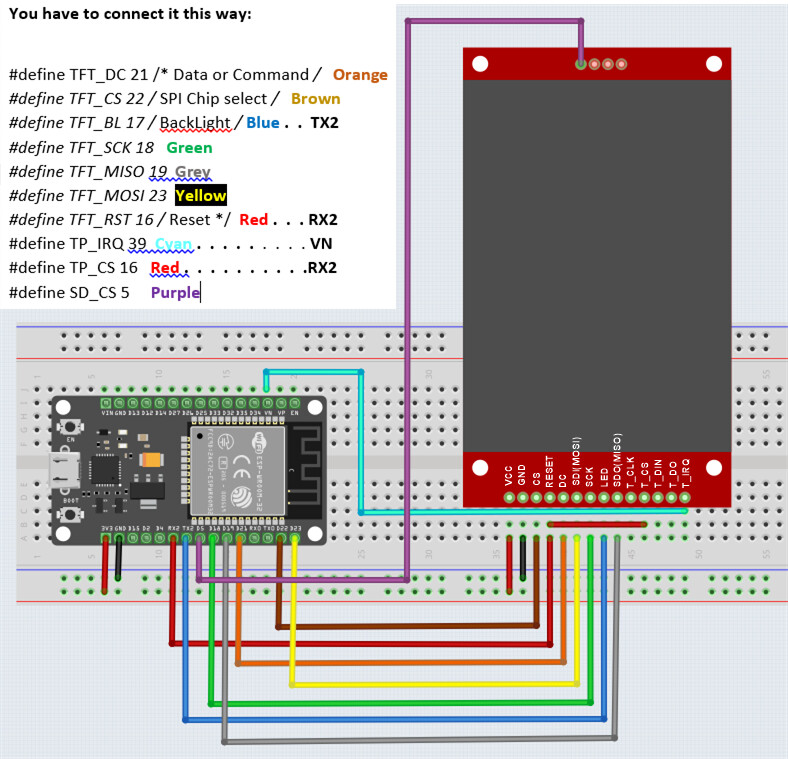
You have to connect it this way:
#define TFT_DC 21 /* Data or Command /
#define TFT_CS 22 / SPI Chip select /
#define TFT_BL 17 / BackLight /
#define TFT_SCK 18
#define TFT_MISO 19
#define TFT_MOSI 23
#define TFT_RST 16 / Reset */
#define TP_IRQ 39
#define TP_CS 16
#define SD_CS 5
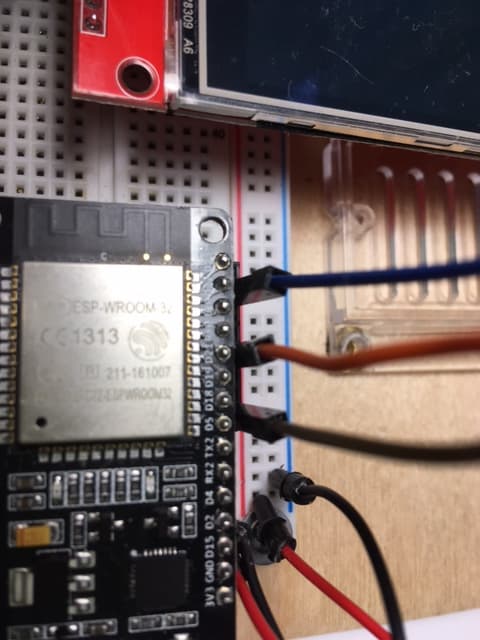
You should take pictures from vertical above the device. Only if you take the picture from vertical above it will be easy to see which pin is connected to what
In lack of such a picture from you I use this picture to explain the wiring
best regards Stefan