I recently got a Arduino Uno R4 Wifi And A L298N . I wanted to create a Wireless RC 4WD Car with that need help for code .

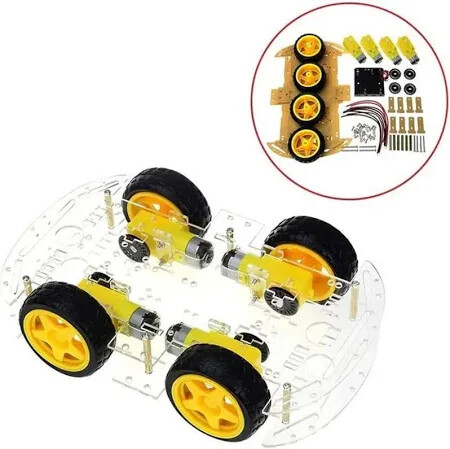

I have The Following things excluding power solitions
- Arduino UNO R4 Wifi
- L298N
- 4 Motors
- 4 Wheels
- Chasis kit
- Nuts and Bolts
I recently got a Arduino Uno R4 Wifi And A L298N . I wanted to create a Wireless RC 4WD Car with that need help for code .
I have The Following things excluding power solitions
The 298 is not a great choice as a motor interface , there are more efficient ones .
What is your programming experience , what have you done so far ?
Members of the forum are here to help with your learning, but won’t write code for you ( unless you pay for it ) . It’s better that you start writing and ask specific problems.
Using WiFi or Bluetooth?
Code is usually supplied with the kit; you may need to read a URL on the package, or a QR code, or go to the site you bought it from and look there. Otherwise, use Google. We are here to help, not to do the coding.
Any
I am not a even a teen , I started robotics last year , Know C++ (But not good at Serial Monitor Receiving,Wifi Communication,Bleutooth Communication),Know Python,Know Java and Went Thrice for Robotics related nationals
I brought it from a custom hardware shop and I brought Arduino UNO r4 Wifi from somewhere else . The kit only had motors , some wires , RC gears , Chasis and some nuts and bolts
I have shown images of everything I have
I want edits for free I will share my code soon
SO I have used a Web Socket to use with my code
Arduino Code
#include <WiFiS3.h>
#include <WebSocketServer.h>
#include "index.h"
#include "Arduino_LED_Matrix.h"

#define CMD_STOP 0
#define CMD_FORWARD 1
#define CMD_BACKWARD 2
#define CMD_LEFT 4
#define CMD_RIGHT 8

#define ENA_PIN 7  // The Arduino UNO R4 pin connected to the ENA pin L298N
#define IN1_PIN 6  // The Arduino UNO R4 pin connected to the IN1 pin L298N
#define IN2_PIN 5  // The Arduino UNO R4 pin connected to the IN2 pin L298N
#define IN3_PIN 4  // The Arduino UNO R4 pin connected to the IN3 pin L298N
#define IN4_PIN 3  // The Arduino UNO R4 pin connected to the IN4 pin L298N
#define ENB_PIN 2  // The Arduino UNO R4 pin connected to the ENB pin L298N

const char *ssid = "Wifi_SSID";     // CHANGE IT
const char *password = "Wifi_Password";  // CHANGE IT

using namespace net;

WebSocketServer webSocket(81);
WiFiServer server(80);
int status = WL_IDLE_STATUS;
ArduinoLEDMatrix matrix;

void setup() {
  Serial.begin(9600);

  pinMode(ENA_PIN, OUTPUT);
  pinMode(IN1_PIN, OUTPUT);
  pinMode(IN2_PIN, OUTPUT);
  pinMode(IN3_PIN, OUTPUT);
  pinMode(IN4_PIN, OUTPUT);
  pinMode(ENB_PIN, OUTPUT);

  digitalWrite(ENA_PIN, HIGH);  // set full speed
  digitalWrite(ENB_PIN, HIGH);  // set full speed

  //Initialize serial and wait for port to open:
  Serial.begin(9600);

  String fv = WiFi.firmwareVersion();
  if (fv < WIFI_FIRMWARE_LATEST_VERSION)
    Serial.println("Please upgrade the firmware");

  // attempt to connect to WiFi network:
  while (status != WL_CONNECTED) {
    Serial.print("Attempting to connect to SSID: ");
    Serial.println(password);
    // Connect to WPA/WPA2 network. Change this line if using open or WEP network:
    status = WiFi.begin(ssid, password);

    // wait 4 seconds for connection:
    delay(4000);
  }

  // print your board's IP address:
  Serial.print("IP Address: ");
  Serial.println(WiFi.localIP());

  server.begin();

  webSocket.onConnection([](WebSocket &ws) {
    const auto protocol = ws.getProtocol();
    if (protocol) {
      Serial.print(F("Client protocol: "));
      Serial.println(protocol);
    }

    ws.onMessage([](WebSocket &ws, const WebSocket::DataType dataType,
                    const char *message, uint16_t length) {
      String cmd_str = String((char *)message);
      int command = cmd_str.toInt();
      Serial.print("command: ");
      Serial.println(command);

      switch (dataType) {
        case WebSocket::DataType::TEXT:
          switch (command) {
            case CMD_STOP:
              Serial.println("Stop");
              CAR_stop();
              break;
            case CMD_FORWARD:
              Serial.println("Move Forward");
              CAR_moveForward();
              break;
            case CMD_BACKWARD:
              Serial.println("Move Backward");
              CAR_moveBackward();
              break;
            case CMD_LEFT:
              Serial.println("Turn Left");
              CAR_turnLeft();
              break;
            case CMD_RIGHT:
              Serial.println("Turn Right");
              CAR_turnRight();
              break;

            default:
              Serial.println("Unknown command");
          }

          break;
        case WebSocket::DataType::BINARY:
          Serial.println(F("Received binary data"));
          break;
      }
    });

    ws.onClose([](WebSocket &, const WebSocket::CloseCode, const char *,
                  uint16_t) {
      Serial.println(F("Disconnected"));
    });

    Serial.print(F("New WebSocket Connnection from client: "));
    Serial.println(ws.getRemoteIP());
  });

  webSocket.begin();
}

void loop() {
  webSocket.listen();

  // listen for incoming clients
  WiFiClient client = server.available();
  if (client) {
    // read the HTTP request header line by line
    while (client.connected()) {
      if (client.available()) {
        String HTTP_header = client.readStringUntil('\n');  // read the header line of HTTP request

        if (HTTP_header.equals("\r"))  // the end of HTTP request
          break;

        Serial.print("<< ");
        Serial.println(HTTP_header);  // print HTTP request to Serial Monitor
      }
    }

    // send the HTTP response header
    client.println("HTTP/1.1 200 OK");
    client.println("Content-Type: text/html");
    client.println("Connection: close");  // the connection will be closed after completion of the response
    client.println();                     // the separator between HTTP header and body

    String html = String(HTML_CONTENT);

    client.println(html);
    client.flush();

    // give the web browser time to receive the data
    delay(100);

    // close the connection:
    client.stop();
  }
}


// ------------ FACE PATTERNS -------------
const uint8_t FACE_STOP[] PROGMEM = {
0, 0, 0, 0, 0, 1, 1, 0, 0, 0, 0, 0,
0, 0, 0, 0, 1, 1, 1, 1, 0, 0, 0, 0,
0, 0, 0, 1, 1, 1, 1, 1, 1, 0, 0, 0,
0, 0, 0, 1, 1, 1, 1, 1, 1, 0, 0, 0,
0, 0, 0, 1, 1, 1, 1, 1, 1, 0, 0, 0,
0, 0, 0, 1, 1, 1, 1, 1, 1, 0, 0, 0,
0, 0, 0, 0, 1, 1, 1, 1, 0, 0, 0, 0,
0, 0, 0, 0, 0, 1, 1, 0, 0, 0, 0, 0,
};

const uint8_t FACE_FORWARD[] PROGMEM = {
0, 0, 0, 0, 0, 0, 0, 0, 0, 0, 0, 0,
0, 0, 0, 0, 0, 1, 1, 0, 0, 0, 0, 0,
0, 0, 0, 1, 1, 1, 1, 1, 1, 0, 0, 0,
0, 0, 0, 1, 1, 1, 1, 1, 1, 0, 0, 0,
0, 0, 0, 0, 0, 1, 1, 0, 0, 0, 0, 0,
0, 0, 0, 0, 0, 1, 1, 0, 0, 0, 0, 0,
0, 0, 0, 0, 0, 1, 1, 0, 0, 0, 0, 0,
0, 0, 0, 0, 0, 0, 0, 0, 0, 0, 0, 0,
};

const uint8_t FACE_BACKWARD[] PROGMEM = {
0, 0, 0, 0, 0, 0, 0, 0, 0, 0, 0, 0,
0, 0, 0, 0, 0, 1, 1, 0, 0, 0, 0, 0,
0, 0, 0, 0, 0, 1, 1, 0, 0, 0, 0, 0,
0, 0, 0, 1, 1, 1, 1, 1, 1, 0, 0, 0,
0, 0, 0, 1, 1, 1, 1, 1, 1, 0, 0, 0,
0, 0, 0, 0, 0, 1, 1, 0, 0, 0, 0, 0,
0, 0, 0, 0, 0, 0, 0, 0, 0, 0, 0, 0,
};

const uint8_t FACE_LEFT[] PROGMEM = {
0, 0, 0, 0, 0, 0, 0, 0, 0, 0, 0, 0,
0, 0, 0, 0, 0, 0, 0, 0, 1, 0, 0, 0,
0, 0, 0, 0, 0, 0, 0, 0, 1, 1, 0, 0,
0, 1, 1, 1, 1, 1, 1, 1, 1, 1, 1, 0,
0, 0, 0, 0, 0, 0, 0, 0, 1, 1, 0, 0,
0, 0, 0, 0, 0, 0, 0, 0, 1, 0, 0, 0,
0, 0, 0, 0, 0, 0, 0, 0, 0, 0, 0, 0,
};

const uint8_t FACE_RIGHT[] PROGMEM = {
0, 0, 0, 0, 0, 0, 0, 0, 0, 0, 0, 0,
0, 0, 0, 1, 0, 0, 0, 0, 0, 0, 0, 0,
0, 0, 1, 1, 0, 0, 0, 0, 0, 0, 0, 0,
0, 1, 1, 1, 1, 1, 1, 1, 1, 1, 1, 0,
0, 0, 1, 1, 0, 0, 0, 0, 0, 0, 0, 0,
0, 0, 0, 1, 0, 0, 0, 0, 0, 0, 0, 0,
0, 0, 0, 0, 0, 0, 0, 0, 0, 0, 0, 0,
};

// ------------ MODIFY ONLY THESE FUNCTIONS -------------
void CAR_moveForward() {
  digitalWrite(IN1_PIN, HIGH);
  digitalWrite(IN2_PIN, LOW);
  digitalWrite(IN3_PIN, HIGH);
  digitalWrite(IN4_PIN, LOW);
  matrix.loadFrame(FACE_FORWARD);
}

void CAR_moveBackward() {
  digitalWrite(IN1_PIN, LOW);
  digitalWrite(IN2_PIN, HIGH);
  digitalWrite(IN3_PIN, LOW);
  digitalWrite(IN4_PIN, HIGH);
  matrix.loadFrame(FACE_BACKWARD);
}

void CAR_turnLeft() {
  digitalWrite(IN1_PIN, HIGH);
  digitalWrite(IN2_PIN, LOW);
  digitalWrite(IN3_PIN, LOW);
  digitalWrite(IN4_PIN, LOW);
  matrix.loadFrame(FACE_LEFT);
}

void CAR_turnRight() {
  digitalWrite(IN1_PIN, LOW);
  digitalWrite(IN2_PIN, LOW);
  digitalWrite(IN3_PIN, HIGH);
  digitalWrite(IN4_PIN, LOW);
  matrix.loadFrame(FACE_RIGHT);
}

void CAR_stop() {
  digitalWrite(IN1_PIN, LOW);
  digitalWrite(IN2_PIN, LOW);
  digitalWrite(IN3_PIN, LOW);
  digitalWrite(IN4_PIN, LOW);
  matrix.loadFrame(FACE_STOP);
}
Html Code
const char *HTML_CONTENT = R"=====(
<!DOCTYPE html>
<html>
<head>
<title>Arduino RC Car Control</title>
<meta name="viewport" content="width=device-width, initial-scale=0.7, maximum-scale=1, user-scalable=no">
<style>
  body {
    text-align: center;
    font-size: 24px;
    margin: 0;
    font-family: Arial, sans-serif;
    background: linear-gradient(135deg, #1a2a6c, #b21f1f, #fdbb2d);
    background-attachment: fixed;
    color: white;
  }
  h2 {
    margin: 20px 0;
    text-shadow: 2px 2px 6px rgba(0,0,0,0.4);
  }
  #controller-card {
    background: rgba(255,255,255,0.15);
    backdrop-filter: blur(8px);
    border-radius: 20px;
    padding: 20px;
    width: 450px;
    margin: auto;
    box-shadow: 0 8px 20px rgba(0,0,0,0.4);
  }
  button {
    font-size: 22px;
    padding: 10px 20px;
    margin: 10px;
    border-radius: 12px;
    border: none;
    background: #222;
    color: white;
    box-shadow: 0 4px 10px rgba(0,0,0,0.3);
    cursor: pointer;
  }
  button:hover { background: #444; }
  #container {
    margin: auto;
    width: 400px; height: 400px;
    position: relative;
  }
  div[class^='button'] {
    position: absolute;
    border-radius: 12px;
    display: flex;
    align-items: center;
    justify-content: center;
    font-weight: bold;
    background: rgba(255,255,255,0.2);
    color: white;
    text-shadow: 1px 1px 3px black;
  }
  .button_up, .button_down { width:214px; height:104px; }
  .button_left, .button_right { width:104px; height:214px; }
  .button_stop { width:178px; height:178px; background:#f44; }
  .button_up    { left: 50%; top: 0;   transform: translateX(-50%); }
  .button_down  { left: 50%; bottom:0; transform: translateX(-50%); }
  .button_left  { left:0; top:50%;     transform: translateY(-50%); }
  .button_right { right:0; top:50%;    transform: translateY(-50%); }
  .button_stop  { left:50%; top:50%;   transform: translate(-50%,-50%); }
  footer {
    margin-top: 20px;
    font-size: 16px;
    color: #eee;
    text-shadow: 1px 1px 3px black;
  }
</style>
<script>
var CMD_STOP=0, CMD_FORWARD=1, CMD_BACKWARD=2, CMD_LEFT=4, CMD_RIGHT=8;
var ws=null;

function init() {
  var c=document.querySelector("#container");
  c.addEventListener("touchstart", mouse_down);
  c.addEventListener("touchend", mouse_up);
  c.addEventListener("mousedown", mouse_down);
  c.addEventListener("mouseup", mouse_up);
  c.addEventListener("mouseout", mouse_up);
}
function ws_onopen(){ document.getElementById("ws_state").innerHTML="OPEN"; document.getElementById("wc_conn").innerHTML="Disconnect";}
function ws_onclose(){ document.getElementById("ws_state").innerHTML="CLOSED"; document.getElementById("wc_conn").innerHTML="Connect"; ws=null;}
function wc_onclick(){
  if(ws==null){ ws=new WebSocket("ws://"+window.location.host+":81");
    document.getElementById("ws_state").innerHTML="CONNECTING";
    ws.onopen=ws_onopen; ws.onclose=ws_onclose;
  } else ws.close();
}
function mouse_down(e){ if(e.target!==e.currentTarget){ send_command(parseInt(e.target.id)); } e.preventDefault();}
function mouse_up(e){ send_command(CMD_STOP); e.preventDefault();}
function send_command(cmd){ if(ws && ws.readyState==1) ws.send(cmd+"\r\n"); }
window.onload=init;
</script>
</head>
<body>
<h2>Arduino RC Car Control</h2>
<div id="controller-card">
  <div id="container">
    <div id="1" class="button_up">↑</div>
    <div id="2" class="button_down">↓</div>
    <div id="4" class="button_left">←</div>
    <div id="8" class="button_right">→</div>
    <div id="0" class="button_stop">STOP</div>
  </div>
  <p>WebSocket: <span id="ws_state" style="color:yellow">closed</span></p>
  <button id="wc_conn" onclick="wc_onclick();">Connect</button>
</div>
<footer>
Made with Creativity by <b>Siddhant Neekhra</b>
</footer>
</body>
</html>
)=====";
We need wiring diagrams. A picture of a hand drawn is fine. We can't trace wires in pics.
Ok, so what do you expect that code to do and what does it do.
Does it work?
FIrst through serial monitor arduino will tell me some cordinates which then I will have to enter in my browser. A webpage will appear. I will be able to control my car with that
When I had opened the Webpage it showed Websocket closed and now when I am unable to upload the correct code. I think My Arduino Uno R4 Wifi (EK made in india) has died.
Which AI did you use to create the code?
None
You probably had something wired wrong and damaged the board.
So I improved my code the mistake was
uint8_t[][]
But it was supposed to be
uint32_t[][]
There are no 2 dimentional arrays in your code, so I doubt if that was the problem