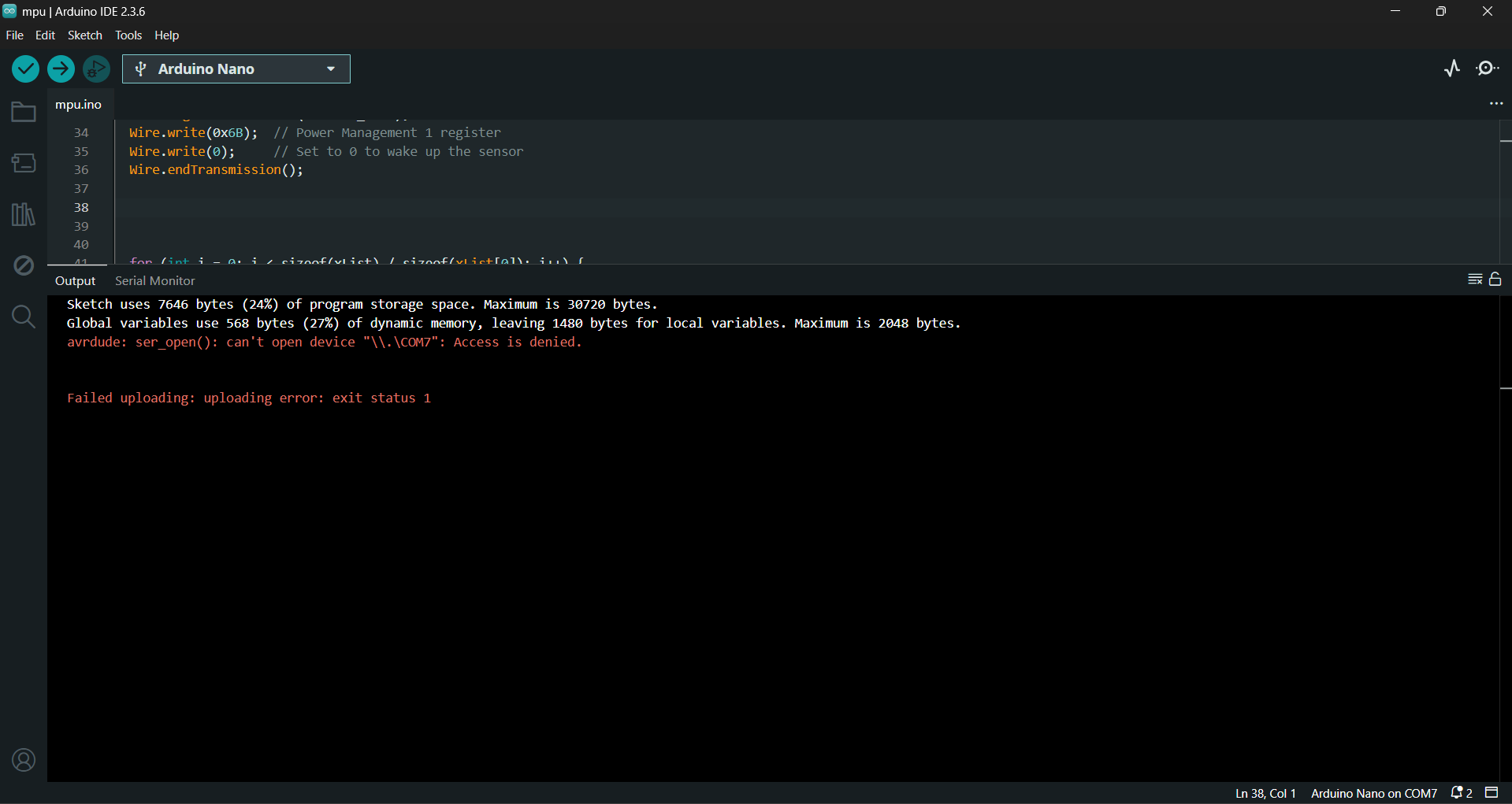
I have recently purchased 4 original Arduino Nanos. However, when I try to upload a sketch, I get this error: avrdude: ser_open(): can't open device "\.\COM7": Access is denied.
I have tried reinstalling both the FTDI and CH340 drivers and it did not work. The interesting part is that it does work for one time only when I restart the PC and it also works when I try to upload to an UNO board regardless of wheter it is a clone or original one.
Also for further details, this is what each board shows up like in the device manager:
Nano (the problematic one): USB Serial Port (COM7)
Uno original: Arduino Uno (COM6)
Uno clone: USB-SERIAL CH340 (COM8)
Hi @cagan12. There is a known bug in Arduino IDE 2.x that can cause uploads to fail with this "Access is denied" error if you try uploading to a board like the official Nano that uses an FTDI FT232R USB chip while the Arduino IDE Serial Monitor or Serial Plotter is open.
A port can only be used by one process at a time, so Arduino IDE must automatically close the port in Serial Monitor and Serial Plotter during an upload, automatically opening it again after. For some reason, that juggling of the port control is not working with boards that have the FTDI USB chip.
If that bug is the cause of the problem you are having, the workaround will be to manually close the port in Serial Monitor/Serial Plotter before doing an upload. Please give that a try and then let me know if you still have the error while uploading:
Serial Monitor
Click the X icon on the "Serial Monitor" tab in the bottom panel of the Arduino IDE window to close the tab:
Open Serial Monitor again if needed (by clicking the icon on the IDE toolbar or the Tools > Serial Monitor menu item) after the upload is finished.
Serial Plotter
If you have the "Serial Plotter" window open, the procedure is a bit different from closing the Serial Monitor connection:
Close the "Serial Plotter" window.
If the "Serial Monitor" view is not already open, select Tools > Serial Monitor from the Arduino IDE menus to open it. ⓘ We must do an open/close cycle on Serial Monitor as a workaround for a bug in Serial Plotter
Click the X icon on the "Serial Monitor" tab in the bottom panel of the Arduino IDE window to close the tab: