IDE crashes my computer

Continuing the discussion from Change TAB size. NOT spacing but FILE NAMES at top:

I have a question about this:

My computer has crashed 4 times since installing this IDE. It is actually 2.3.5 nightly, according to the ide itself. The computer will start back up with no problems when I hit the power button. The common denominator in all 4 crashes is the fact that I was using the IDE at the same time the computer crashed. All 4 times. Could the nightly IDE and the crashing be related?

How do I get my previous version back?

It is true that the nightly builds are primarily intended for beta testing and are not recommended for normal usage for work on your Arduino projects. However, currently there is absolutely no functional difference between the nightly build and the release version 2.3.4. The reason is that there hasn't been any development work on the Arduino IDE project since the time of the 2.3.4 release.

So the crashing is definitely not caused by you using the nightly build specifically. However, it is possible it could be caused by you using Arduino IDE in general.

Which operating system are you using (e.g., "Windows")?

What exactly do you mean by "crashed"?

I can't recall this ever happening until the last couple of weeks.

I am using Windows 11 Home.

By "crashed" I mean that twice the computer turned off and the screen went black with no warning. It was not a "proper" shut down. It just shut down in the blink of an eye. I had to use the power button to power back up and sign back in. Two other times the screen went blue with no warning and showed a message. I can't remember the exact message but it was something along the lines of "Something went wrong and you need to restart the computer". The only way to restart it is either click the button it provides in that screen of turn it off with the button on the keyboard.

I haven't seen any reports of anything like that.

We have had a few reports of "blue screen of death" (BSoD) occurring while using Arduino IDE under certain conditions:

Does the Arduino board you are using have the WCH CH340 USB chip?:

๐Ÿ“ท

SparkFun - CC BY-SA 4.0 (cropped)

Or maybe this mysterious unlabeled variant?:

๐Ÿ“ท

NodeMCU Lua Lol1n V3.jpg by Popolon - CC BY-SA 4.0 (cropped)

Do you remember whether your board was running a sketch that caused it to print a large amount of data to Serial?

I had a similar experience about a year ago on my 12 year old computer running Windows 10. It eventually boiled down to bad memory (or a bad memory controller).

I guess your computer is not as old but I suggest that you run some tests to check. I used memtest that comes with Linux distros, https://www.hirensbootcd.org/ is probably another option.

Yes. This is on a nano. At least two of the crashes were while using this board. The BSoD is very similar to the one pictured in the github link.

Yes I was printing to the serial port. Was I printing a large amount of data? Define that. I would not say so but maybe I was. The most I was printing was the name of 6 variables with their respective values (all values were not more than an integer long), all in a straight row, and when the last value was printed with Serial.println() it dropped to a new line and did the same thing. It printed a new line maybe every 100 milliSeconds at 9600 baudrate. I do not remember the amount of time it took for the crashes to happen. I do know it is random. The other night I let it run for about an hour on the same NANO board and it worked flawlessly.

I will go through the github again and check my CH340 drivers. That is a bit daunting for me. Just because I have dove into the arduino world does not mean I am confident on the computers. I am always a little paranoid about clicking the wrong thing and I can't reverse the results. That is why I did not know about the sketchbook in the IDE (which I love by the way...Thanks again!). I am afraid to randomly click on stuff without knowing what will happen.

But give me a broken machine I haven't seen and tell me to fix it? That's a different story. I will start in on that with no hesitation. I am far more mechanical minded than using electronics minded.

I think my computer is about 3 years old and runs strong otherwise. This is ONLY happening while using the arduino IDE. Even powering the arduino from the computer and closing the IDE at the same time has not made it crash that I am aware of. I realize my memory seems a little sketchy on the events, but I did not know to start thinking about the cause until the post above about nightly causing problems. So I was not filing anything away in the ol' memory bank.

SO....If the problem lies in the driver on the computer and the updating of the driver fixes it, it is fixed correct? But if that does not fix it, is the board reliable to use in a project?

For example, this sketch will print a large amount of data:

void setup() {
  Serial.begin(115200);
}

void loop() {
  Serial.println("hello");
}

According to the person who wrote the bug report I linked in my previous reply, if they run a sketch that outputs that volume of data that with Serial Monitor open, it will cause a BSoD within a matter of minutes.

If you upload that sketch to your board and then leave Arduino IDE running with Serial Monitor open (first making sure you don't have any unsaved work that would be lost through a crash), does it cause a BSoD?


Conversely, I would not consider this sketch to print a large amount of data

void setup() {
  Serial.begin(9600);
}

void loop() {
  Serial.println("hello");
  delay(1000);
}

(note the delay was increased to 1000 ms)

That is somewhere in the middle.

Did you have Serial Monitor open in Arduino IDE during that test?

I provided detailed instructions here:

https://github.com/arduino/arduino-ide/issues/2592#issuecomment-2574854418

My approach to writing instructions is to add a step for every single action that needs to be performed, no matter how trivial (because I have found that something I think is obvious may not be to someone else). So even though it looks like a lot of steps, I think you'll find that it is quite simple to accomplish.

Although we haven't received many reports of the BSoD problem. We have received a ton of reports about a different problem with using the recent drivers with specific batches of the "CH340" chips. I use the exact same instructions when supporting all those users (many of whom weren't terribly computer savvy) and nobody has had any problems. So I think you will be fine.

Nice!

I think so. We never received any reports like this before the latest version of the CH340 driver was released. Likewise, people are reporting that the problem only occurs when using the Arduino Serial Monitor; not when using alternative serial terminal applications. So it seems to be a software bug (either with the CH340 driver or with the the "go-serial" Go module used by Serial Monitor), not a problem with the hardware.

Cross that bridge when you come to it.

Yes the serial monitor was running the whole time. If I remember right all 4 times there was an issue the serial monitor was running. But it does not do it EVERY time the serial monitor is running. The amount of run time may be a common denominator I haven't noticed yet.

void setup() {
  Serial.begin(115200);
}

void loop() {
  Serial.println("hello");
}

This BSoD'd my computer after running the serial monitor for about 9-10 minutes.

I will look this over again in a day or two and try it out. Then try the hello sketch again and see what happens.

Thank you for details.

I will let you know when I get the driver taken care of and if it passes the test.

1 Like

I got to this point while following your instructions to download the new driver:

"It is possible you will instead see the message "The best drivers are already installed ". If so, please stop following the instructions here and comment on the issue to let me know. I'll provide alternative instructions you can follow."

My computer said "The best drivers are already installed." So I did as your instructions said and quit following the instructions and came back to report the issue.

OK, I have found that when the driver installation gets into this state, it can be solved by uninstalling and then reinstalling the drivers. After that, the "roll back" option should be enabled.

I'll provide instructions you can follow to do that:

  1. Close Arduino IDE if it is running.
  2. Connect the Arduino board to your computer with a USB cable.
  3. Open the Windows Device Manager.
  4. Select View > Devices by type from the Device Manager menus.
  5. Open the "View" menu.
  6. If there is a โœ“ to the left of the "Show hidden devices" menu item, click on "Show hidden devices" to disable it.
  7. Open the "Ports (COM & LPT)" section of the Device Manager tree.
  8. You should see a port identified as "USB-SERIAL CH340 (COMn)" under the "Ports (COM & LPT)" section (where "COMn" is some serial port e.g., COM4). Double click on that item.
    The "USB-SERIAL CH340 (COMn) Properties" dialog will open.
  9. Select the "Driver" tab of the "USB-SERIAL CH340 (COMn) Properties" dialog.
  10. Click the "Uninstall Device" button.
    The "Uninstall Device" dialog will open.
  11. Check the box next to "โ˜ Attempt to remove the driver for this device.".
  12. Click the "Uninstall" button.
    The "Uninstall Device" and "USB-SERIAL CH340 (COMn) Properties" dialogs will close.
  13. Disconnect the USB cable of the Arduino board from your computer.
  14. Reconnect the USB cable of the Arduino board to your computer.
  15. Wait for the "USB-SERIAL CH340 (COMn)" device to appear under the "Ports (COM & LPT)" section of the Device Manager tree.
    :exclamation: This will take a couple of minutes as Windows must first automatically reinstall the driver.
    :exclamation: It might appear first as a "USB2.0-Serial" device under the "Other devices section of the tree. Just wait for a little longer and it will appear in its final place under the "Ports (COM & LPT)" section.
  16. Click the following link to download the previous version of the driver from the chip manufacturer's website:
    https://www.wch-ic.com/downloads/file/65.html?time=2023-03-16%2022:57:59
  17. Wait for the download to finish.
  18. Run the downloaded CH341SER.EXE file.
  19. A "User Account Control" dialog may now appear asking "Do you want to allow this app to make changes to your device?". Click the "Yes" button.
  20. A "DriverSetup(X64)" dialog will open. Click the "INSTALL" button in the dialog.
  21. Wait for the driver installation to finish, as indicated by the appearance of a "Driver install success!" dialog.
  22. Click the "OK" button in the "Driver install success!" dialog.
    The dialog will close.
  23. Click the X icon at the top right of the "DriverSetup(X64)" dialog.
    The dialog will close.
  24. Switch back to the Windows "Device Manager".
  25. Double click on the "USB-SERIAL CH340 (COMn)" device under the "Ports (COM & LPT)" section.
    The "USB-SERIAL CH340 (COMn) Properties" dialog will open.
  26. Select the "Driver" tab of the "USB-SERIAL CH340 (COMn) Properties" dialog.
  27. Click the "Update driver" button.
    An "Update Drivers Device - USB-SERIAL CH340 (COMn)" dialog will open.
  28. Click on "Search automatically for drivers" in the "Update Drivers Device - USB-SERIAL CH340 (COMn)" dialog.
  29. You should now see the driver installation wizard update the driver. Wait for the update to finish, as indicated by the message "Windows has successfully updated your drivers" in the dialog.
  30. Click the "Close" button in the "Update Drivers Device - USB-SERIAL CH340 (COMn)" dialog.
    The dialog will close.
  31. Click the "Roll Back Driver" button in the "USB-SERIAL CH340 (COMn) Properties" dialog.
    The "Driver Package rollback" dialog will open.
  32. Click the radio button next to "My apps don't work with this driver" in the "Driver Package rollback" dialog .
  33. Click the "Yes" button.
    The "Driver Package rollback" dialog will close.
  34. Click the "Close" button in the "USB-SERIAL CH340 (COMn) Properties" dialog.

Now start Arduino IDE again and repeat whatever you were doing before when you encountered that error before. Hopefully this time you will not encounter that "can't set com-state" error during the sketch upload.

1 Like

Those instructions worked. It's pretty hard to mess up when you have instructions like that!

I ran this sketch again:

void setup() {
  Serial.begin(115200);
}

void loop() {
  Serial.println("hello");
}

I watched it for a few minutes and gained a little confidence. Then I started welding and checked on it every 5-10 minutes. It was still running every time, and I gained more confidence. Then I just let her rip for a couple of hours while I was working. When I came back to check on it...guess what? It was still running! No BSoD. So now I have TONS of confidence. When it started happening I was afraid it was my computer.

Thanks a million! It's a good thing I wanted to make my editor tabs narrower! Even though I did not achieve that I discovered the sketchbook (which I highly recommend) AND found a solution to a problem I did not even know I had.

1 Like

You are welcome. I'm glad it is working now.

Regards, Per

WELL....Maybe there is still an issue lurking. I am back working on a previous sketch I started about a month ago. I am using the same nano board with the WCH CH340 USB chip.

I am working through some math numbers in the sketch and watching values change on the serial monitor. I am playing with a magnetometer and changing the values by placing metal objects near it.

Anyway, twice while running the serial monitor the computer crashed again.

The first time the serial monitor was running maybe 5 minutes or so. Then the screen went black for a couple of seconds and then a different blue screen came on, stating that windows did not shut down properly and to restart the PC.

The second time the serial monitor was running for less than two minutes. Then the screen went black EXCEPT the mouse cursor stayed on the screen. But the cursor would not respond to a movement. The blue screen did not come on. I had to hold the power button down for awhile to turn off the computer and restart it. THEN the bluescreen came on.

Here is the exact sketch I was playing around with at the time:

//-----C A R  D E T E C T O R-------for automatic gate-------------------
//FEB 15, 2025

//Detect presence of vehicle by sensing change in earth's magnetic field

/*Hardware
     --Arudino Nano
     --LIS3MDL board from Pololu
     --SPDT relay with diode
*/

/*------NOTES----------------------------------------------------------
     FEB 16, 2025                  Added buzzer for audible testing.
*/

//-----INCLUDE LIBRARIES---------------------------------------------------
#include <Wire.h>
#include <LIS3MDL.h>

LIS3MDL mag;                       //Make object to communicate with LIS3MDL library

//-----Standard Variables---------------------------------------------------
const int relayPin = 7;           //Define relay pin
int led = 13;                     //Define pin 13 to turn off onboard LED
                                  //MIGHT consider using 13 as relay pin
const int buzzer = 3;             //Buzzer used for prototyping/testing only. Comment out for final project
int sound = 4000;                 //Set buzzer frequency. 4000 is easy to hear.
int buzzTime = 350;               //Set buzz time

bool relayTriggered = false;      //Keep up with relay state. Relay on or off.

//-----Magnetometer Measuring Items-----------------------------------------
const int numReadings = 150;      //Get a number of readings to average together
float magXOffset = 0.0;           //Get offsets to calibrate magnetometer
float magYOffset = 0.0;
float magZOffset = 0.0;

long magXSum = 0, magYSum = 0, magZSum = 0;       //Get axis info
float avgMagX;                                    //Average X, Y, and Z axes
float avgMagY;
float avgMagZ;

int readingsCount = 0;                            // Counter for the number of readings to average

//-----Math Formulas---Formulated in loop-------------------------------------
float avgMagnitude;                               //Average X, Y, and Z into one average value
float comparativeValue;                           //Value to comapre to threshold
float threshold;                                  //Trigger relay if far away from magnetometer
float calibratedAvgValue;                         //Determined in calibrateMagnetometer() and used to determine trigger thresholds

//-----Timing-------------------------------------------------------------------
const int printDelay = 200;                       //Delay between serial prints
const int readingInterval = 1;                    //Interval between readings
unsigned long previousReadingMillis = 0;          //Store the last time a reading was taken. For Reading mag
unsigned long relayTimer = 0;                     //Relay trigger timing
const int relayDelay = 2000;                      //Amount of time relay is on in milliseconds
unsigned long previousResetMillis = 0;            //Store last time magnitude reset happened
const int resetDelay = 4000;                      //Reset magnitudes every 5 seconds

//-----Low-pass filter variables--------------------------------------------------
//Smooth out readings by eliminating highest mag and lowest mag reading
float filteredX = 0.0;
float filteredY = 0.0;
float filteredZ = 0.0;
float cutoff = 0.1;                              /* Cutoff frequency (how aggressive the filter is). 
                                                  Smaller number = more aggresive but more lag*/

//-----E N D  O F  V A R I A B L E S----------------------------------------------

void setup() {
  Serial.begin(9600);                             //Start Serial monitor
  Wire.begin();                                   //Initiate I2C comms

  pinMode(led, OUTPUT);                           //Turn off on board pin 13 LED. MIGHT use
  digitalWrite(led, LOW);                         //for relay so LED lights when relay is triggered

  pinMode(buzzer, OUTPUT);                        //Set up buzzer. Comment out for final project


  if (!mag.init()) {                              //Tell me if program can't find magnetometer
    Serial.println("Failed to detect the LIS3MDL magnetometer.");
    while (1)
      ;
  }

  mag.enableDefault();                            //Default library values

  calibrateMagnetometer();

  pinMode(relayPin, OUTPUT);
  digitalWrite(relayPin, LOW);
}

void calibrateMagnetometer() {
  long magXSum = 0, magYSum = 0, magZSum = 0;
  const int calibrationReadings = 500;
  for (int i = 0; i < calibrationReadings; i++) {
    mag.read();
    magXSum += mag.m.x;
    magYSum += mag.m.y;
    magZSum += mag.m.z;
    delay(2);
  }

  magXOffset = magXSum / calibrationReadings;
  magYOffset = magYSum / calibrationReadings;
  magZOffset = magZSum / calibrationReadings;

  calibratedAvgValue = sqrt(magXOffset * magXOffset + magYOffset * magYOffset + magZOffset * magZOffset);
}

//-----E N D  O F  S E T U P------------------------------------------------------

void loop() {
  unsigned long currentReadingMillis = millis();                 //Start timer to collect readings

  if (currentReadingMillis - previousReadingMillis >= readingInterval) {
    previousReadingMillis = currentReadingMillis;

    mag.read();
    // Apply low-pass filter
    filteredX = filteredX + cutoff * (mag.m.x - filteredX);
    filteredY = filteredY + cutoff * (mag.m.y - filteredY);
    filteredZ = filteredZ + cutoff * (mag.m.z - filteredZ);

    // Calculate magnitude of filtered values

    magXSum += (filteredX - magXOffset);                         // Add the filtered values to the sums for averaging later
    magYSum += (filteredY - magYOffset);
    magZSum += (filteredZ - magZOffset);

    readingsCount++;                                             //increment reading count
  }

  if (readingsCount >= numReadings) {                            //When numReadings had been reached...
    avgMagX = magXSum / numReadings;
    avgMagY = magYSum / numReadings;
    avgMagZ = magZSum / numReadings;

    avgMagnitude = sqrt(sq(avgMagX) + sq(avgMagY) + sq(avgMagZ)); //Get avgMagnitude

    comparativeValue = sq(avgMagnitude)*4;                        //Compare to threshold

    magXSum = 0;                                                  // Reset sums after averaging
    magYSum = 0;
    magZSum = 0;
    readingsCount = 0;                                            // Reset readings counter

    threshold = calibratedAvgValue*25;
  }

  //-----RELAY TRIGGER CONTROL---------------------------------------------

  if (comparativeValue > threshold && !relayTriggered) {

    //digitalWrite(relayPin, HIGH);
    digitalWrite(led, HIGH);
    //tone (buzzer, sound, buzzTime);
    relayTriggered = true;
    relayTimer = millis();
    avgMagnitude = 0;
  }

  if (relayTriggered) {
    unsigned long currentRelayMillis = millis();
    if (currentRelayMillis - relayTimer >= relayDelay) {
      //digitalWrite(relayPin, LOW);
      digitalWrite(led, LOW);
      noTone(buzzer);
      relayTriggered = false;
    }
  }

  if (avgMagnitude < threshold && !relayTriggered) {
    //digitalWrite(relayPin, LOW);
    digitalWrite(led, LOW);
  }

  //-----RESET MAGNITUDES TO PREVENT CREEPING UP OVER TIME---------------------------
  if (!relayTriggered) {
    unsigned long currentResetMillis = millis();
    if (currentResetMillis - previousResetMillis >= resetDelay) {
      previousResetMillis = currentResetMillis;
      avgMagnitude = 0;
    }
  }

  //-----DO SERIAL PRINTS-----COMMENT OUT FOR FINAL UPLOADED CODE-------------------
  unsigned long checkPrintTime = millis();
  static unsigned long oldPrintTime;
  if (checkPrintTime - oldPrintTime >= printDelay) {
    oldPrintTime = checkPrintTime;
    Serial.print("calibratedAvgValue=  ");
    Serial.print(calibratedAvgValue);
    //Serial.print("  nearThresh= ");
    //Serial.print(nearThreshold);
    Serial.print("  Thresh=  ");
    Serial.print(threshold);
    Serial.print("  AvgMag= ");
    Serial.print(avgMagnitude);
   // Serial.print("  AvgOfAvgs= ");
   // Serial.print(avgOfAverages);
    Serial.print("  ComparativeValue= ");
    Serial.println(comparativeValue);
  }
}

Any thoughts on the crashes?

Did you verify that the driver is still the old driver?

I do not know which version is the old version. This is the current version: 3.9.2024.9

I did however see that the baud rate for the driver port was set 115000. I changed it to 9600.

Edited--I will add the serial monitor's baudrate at the time of the latest crashes in post 13 was 9600.

So Windows updated the driver. Roll it back.

I think that that setting only provides the default value when you are using the command line and has no influence on what applications do.

I went through the instructions again and now my current driver is 3.7.2022.1.

How do I keep windows from automatically updating this?

This thing seriously updated itself back to 3.9.2024.9 in less than 10 hours after I did the roll back. You know how I figured that out? Because it started crashing my computer again. What gives? I cannot find anything online to stop automatically updating that particular driver. I found something from dell, but it does not work on HOME edition. Only PRO edition.

EDITED: To clarify I CAN supposedly stop automatic updating to ALL drivers. So I rolled back the driver again and stopped ALL automatic updating to all drivers. I will see what happens (or hopefully DOESN'T happen). But I can't seem to just choose THAT ONE driver to stop auto updates on.

There is a way that seems to work. I rolled back yesterday; this morning it was still on the older version.

The fact that I had to roll back was kind of unexpected but I fiddle too much with this stuff so I'm not sure if the latest version was installed by me or that Windows did upgrade the driver. I usually don't notice because I don't have boards with problematic CH340s.

I will try to post instructions in the next 24 hours.

  1. Disconnect the board.
  2. In device manager
    • View hidden devices.
    • Uninstall the device with the CH340 driver.
  3. Connect the board.
    • Windows will install the latest driver (3.9.2024.9).
  4. In device manager
    • Tab Driver.
      • The Roll Back Driver should be disabled.
    • Click Update Driver.
    • Select Browse my computer for drivers.
    • Select Let me pick from a list of available drivers on my computer.
  5. You should see two drivers, 3.7.2022.1 and 3.9.2024.9.
    • If the first one is missing, you will need to pre-install the older driver.
  6. Install the older driver.
  7. Close the Update Drivers window.
  8. In device manager in the Driver tab you should now see the older driver.
  9. Repeat steps 4..7 but now select the latest driver.
  10. Close the Update Drivers window.
  11. Now click Roll Back Driver.
    • Click My apps don't work with this driver
    • Click Yes
  12. The driver should now be 3.7.2022.1.

Note:
I did the exercise as described above this morning.

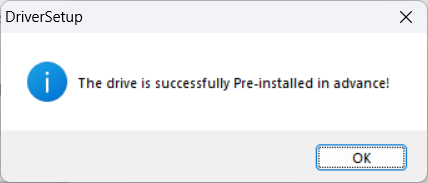
Pre-installing the older CH340 driver (if needed).

  1. Disconnect the board.
  2. Run CH341SER.exe and click Install
  3. On success you should see

See also Sudden Issue: BSODs on 4 Different Laptops Using Arduino Mega (CH341) in Classroom Today (First Time in 3 Months) - #13 by sterretje with some more screenshots.