I find the Applab very interesting, but I’ve noticed two drawbacks (at least for now). First, when you code a sketch — at least on Windows, since I don’t have a stable adapter yet and couldn’t test SBC mode — you can’t delete or rename folders, and you also can’t import images.
Thanks for your feedback @ia-mi!
This is something other users have also reported. The Arduino App Lab developers have been notified.
I have submitted a formal request to the Arduino App Lab developers on your behalf. I'll post an update here if I receive any news from them on the subject.
For now, you will need to import existing files to the App via external means. There is an overview of methods for transferring files from your standard PC to the filesystem on the UNO Q here:
Note that Arduino App Lab's "Files" panel will not reflect the externally added files while the App is open. You will see them there after reloading the App in Arduino App Lab. You can do that quickly by going back to the "My Apps" window of Arduino App Lab and then opening the App once again.
If you give that a try and run into any problems, just let us know and we'll provide further assistance.
Thank you for that, I appreciate the gesture. However, due to the requirements of my project, I can’t use the Web UI brick because it generates JavaScript and CSS in addition to HTML, which my project cannot accommodate.
I’d also like to take this opportunity to share a suggestion that came to me after my previous post: I think it would be interesting if AppLab could allow access to the Arduino OS interface of the UNO Q.
Nothing in what I wrote was meant to imply that you should use a "WebUI" brick.
This is the the relevant information in the post I linked:
These methods can be used to add any arbitrary files to an App. It is true that the user being supported happened to be asking for assistance adding files to be used with a web UI, but the information I shared is simply about accessing the filesystem of the UNO Q's Linux machine.
I don't understand what you mean by this. Please provide a detailed description so that I can understand.
Please explain what you mean by "Arduino OS". I'm not aware of the existence of any such thing. Is it possible you have used an incorrect term?
I understand what you mean; however, for me it’s not possible to use the WebUI block because I cannot use CSS, Java, or HTML5, whereas the WebUI block relies on these elements.
As for “Arduino OS,” the Arduino Uno Q is an SBC — in other words, a computer — and the operating system of the Arduino Uno Q is Arduino OS, based on the Debian Linux distribution.
(If you want to use this mode, you need to connect a dongle that includes an HDMI port, at least two USB ports, and a USB‑C port. Then connect a power supply via USB‑C, a mouse, a keyboard, and a screen, and the system will boot. However, it is not recommended to use an Apple dongle, as it works poorly with the Uno Q.)
P.S. I should mention that part of AppLab is only accessible from Arduino OS.
P.P.S. Oh, but you probably already know that — I hadn’t noticed the icon indicating that you work at Arduino. Did I perhaps use the wrong term for the Uno Q’s operating system?
You do not. You are completely missing the point of what I wrote. You are getting obsessed with the fact that the user @ia-mi in the other topic needed to add files in order to use them in a web UI and allowing that to derail your mind from being able to understand how the information shared by @danpeirce is not in any way specific to that web UI application, and thus is also applicable to your project.
Let's start from scratch. Please forget that I ever provided a link to that "Help on web UI programming" forum topic. Please forget that the subject of "web UI" was ever tangentially introduced into this discussion.
There are several methods for adding a file to an App. In order to avoid any further confusion, I am going to provide instructions for using the most simple of those available methods:
A. Install Android Debug Bridge
For the procedure of transferring files from your standard PC to the file system on the UNO Q's Linux machine, we will use a tool named Android Debug Bridge (ADB).
ⓘ Despite the "Android" in the name, this is a general purpose tool; not exclusive to devices running the Android operating system.
- Click the following link to to download Arduino's distribution package of ADB
https://downloads.arduino.cc/tools/android/platform-tools_r32.0.0-windows.zip - Wait for the download to finish.
- Extract the downloaded archive file to any convenient location on your computer.
That's all you need to do to install ADB. The tool doesn't require the use of a special installer.
B. Push Files
- Connect the UNO Q board to your computer with a USB cable.
- Start Windows "File Explorer".
- Navigate to the folder that contains the installation of the ADB tool you made via the above "A. Install Android Debug Bridge" procedure.
ⓘ The folder will be namedplatform-tools, unless you renamed it to something more meaningful. - In the folder listing of the ADB installation folder, hold the Shift key while clicking the right hand button on the mouse.
A context menu will open - Select "Open PowerShell window here" from the menu.
Windows PowerShell will now open with the current directory set to the Arduino IDE installation folder. - Type the following command in the PowerShell window:
./adb shell ls /home/arduino/ArduinoApps - Press the Enter key.
- A list of the names of the folders of the Apps you have created will be printed in the PowerShell window.
- Take note of the name of the folder of the App you wish to add a file to.
ⓘ The folder names are a "slugified" version of the App name, so the folder name may not match the App name exactly. You should be able to recognize it though. - Type the following command at the terminal command prompt
./adb push <PC path> /home/arduino/ArduinoApps/<App folder> - Replace the
<PC path>placeholder in the command with the path of the file on your PC hard drive you wish to add to the App. - Replace the
<App folder>placeholder in the command with the name of the App's folder, which you determined at the previous step 8. - Press the Enter key.
You should now see a message with the following form printed in the PowerShell window:
<PC path>: 1 file pushed, 0 skipped. 0.0 MB/s (1234 bytes in 0.012s)
(where <PC path> is the path of the file you specified in the adb push command)
You can repeat steps 10-13 for any additional files you wish to add to the App.
C. Reload app
If you already have the App open in Arduino App Lab, you will not see the files you added by the above "B. Push Files" procedure in the "Files" panel of the Arduino App Lab window.
You can make the files visible by reloading the App in Arduino App Lab:
- Click the "← My Apps" breadcrumb link at the top left of the Arduino App Lab window.
The window will switch to the "My Apps" view. - Click on the card for the App in the list of Apps.
The App will now open in the Arduino App Lab window. You should now see the newly added file in the "Files" panel.
There is no such "Arduino OS". The operating system running on the UNO Q's microprocessor is Debian. Please be careful to avoid using the incorrect term "Arduino OS" in future forum topics, as this will lead to confusion.
You should instead either refer to it generally as "Linux", or in the case where it is necessary to specify the distro, "Debian".
As for your suggestion, you can already access a command line terminal on the Linux machine by clicking the >_ button near the bottom left corner of the Arduino App Lab window:

If for some reason you want access to the graphical desktop, that is out of scope for the Arduino App Lab project, but you should be able to accomplish it using remote desktop software.
Thank you very much for your help. I will quickly test your solution regarding the image.
However, about using a remote desktop, I have already tried it and it ended with an error message saying, and I quote: “no graphical interface was detected”.
I therefore assume that the graphical interface only becomes active when the board is in SBC mode, but the problem is that I can’t activate it because my adapters are from Apple and therefore incompatible. (And I should mention that some people don’t even know that SBC mode exists.)
P.S. Also, just to clarify, I had indeed already noticed the terminal button in App Lab.
Thanks for sharing your findings.
Which specific remote desktop software were you using?
It has been mentioned prominently in the product release announcements. For example:
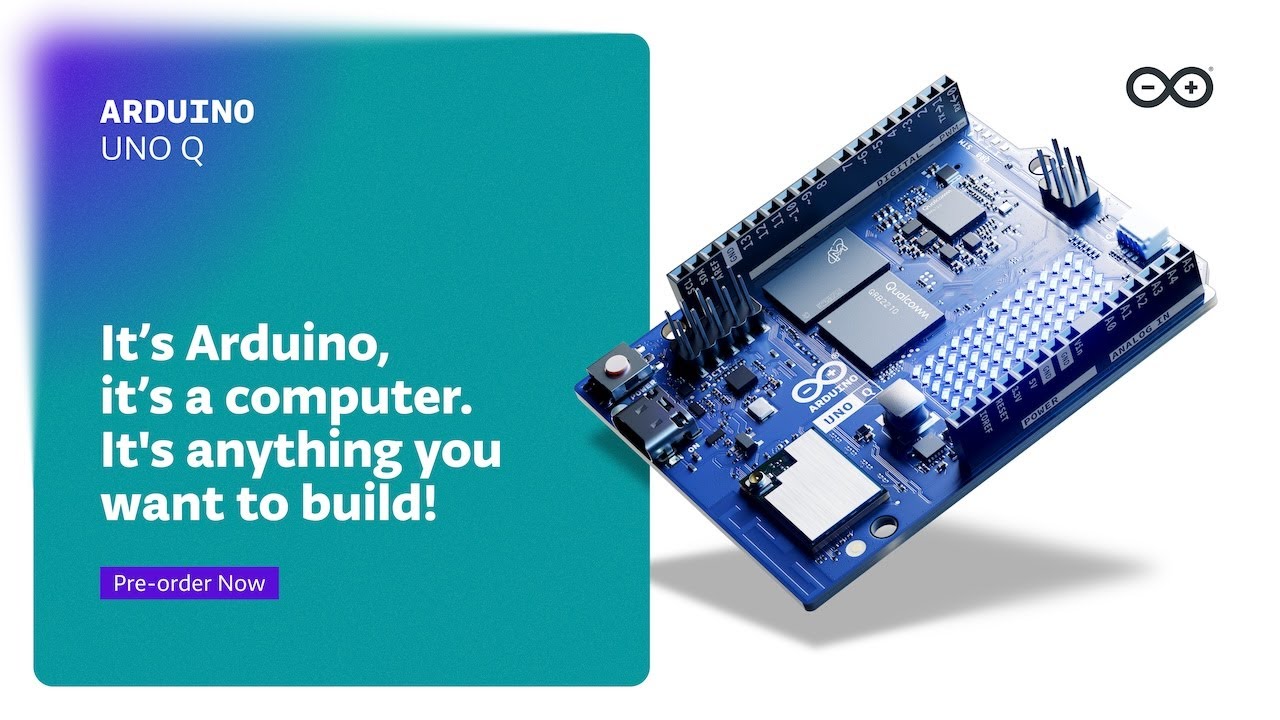
The marketing material. For example:
https://www.arduino.cc/en/uno-q/#:~:text=Single-Board%20Computer%20Mode
And the documentation:
https://docs.arduino.cc/tutorials/uno-q/single-board-computer/
So I do believe that most people who purchase the board will be aware of this capability.
I think this will be emphasized even more heavily once the 4 GB RAM variant is released, as this variant will be best suited for the SBC use case (which is more demanding of computing resources).
Great! I think that the command line interface will be sufficient for most of your needs in the context of using the board in embedded systems applications.
It is mostly only when using the UNO Q in SBC mode as a normal PC that you will want a graphical desktop interface, and such an interface is already available out of the box when using the board in SBC mode.
I used TightVNC on the PC side and x11vnc on the Arduino side.
The issue is that many users don’t even realize SBC mode exists simply because they rushed to buy the board thinking it was “just a more powerful Arduino”, without watching the presentation or reading the documentation.
That’s why I think this feature could be highlighted more clearly — for example by adding a native remote desktop function directly inside AppLab.
It would make the SBC capabilities much more visible and accessible for new users.
P.S. I’m not sure why, but for some reason I thought the UNO Q’s Linux distribution was called “Arduino OS”. In my head, the board was running a proprietary Debian‑based system rather than Debian itself.
sudo apt install xrdp and that's it. You can connect from either PC or mobile in 30 seconds (type arduino user and your password)
I wonder what the performance would be like.
I suspect there would be a performance hit. Providing a terminal requires fewer Uno Q resources.
not wrong
I actually already tried… but it doesn’t work unless it’s in SBC mode, which means it has to be connected to a screen, a keyboard, and a mouse, which would break the whole concept.
No, it should not be in SBC mode. Performance is great. Both from mstsc.exe and Android app. Source: connected right now, by WiFi, UNO is inside robot and has no mouse/keyboard or monitor 
Did you try xrdp as recommended by @extender777, or are you only referring to your test using x11vnc that you mentioned in post #11?
The difference between x11vnc and xrdp is that by default x11vnc mirrors the existing physical display although it can apparently be tricked into using a "dummy" display session through additional configuration. Otherwise, that's why it needs SBC mode with display connected. Without a physical display being connected, there is no display session started for it to hook into. On the other hand, xrdp will create a virtual display session.
I tested xrdp and this does work. On my Linux machine I used Remmina as the display viewer and it allows me to view a remote desktop on the UNO Q and set a comfortable custom display resolution without anything other than a USB cable being connected for power.
(BTW, when installing Remmina, Linux users need to install both the remmina and remmina-plugin-rdp packages)
Performance seems to be quite decent.
Tutorial on remote access on UNO Q: https://docs.arduino.cc/tutorials/uno-q/remote-access/