Hi,
New to Arduino and recently picked up a Nano ESP32. I was hoping to use micropython with it but I'm having issues just connecting to the device to flash the micropython firmware onto it.
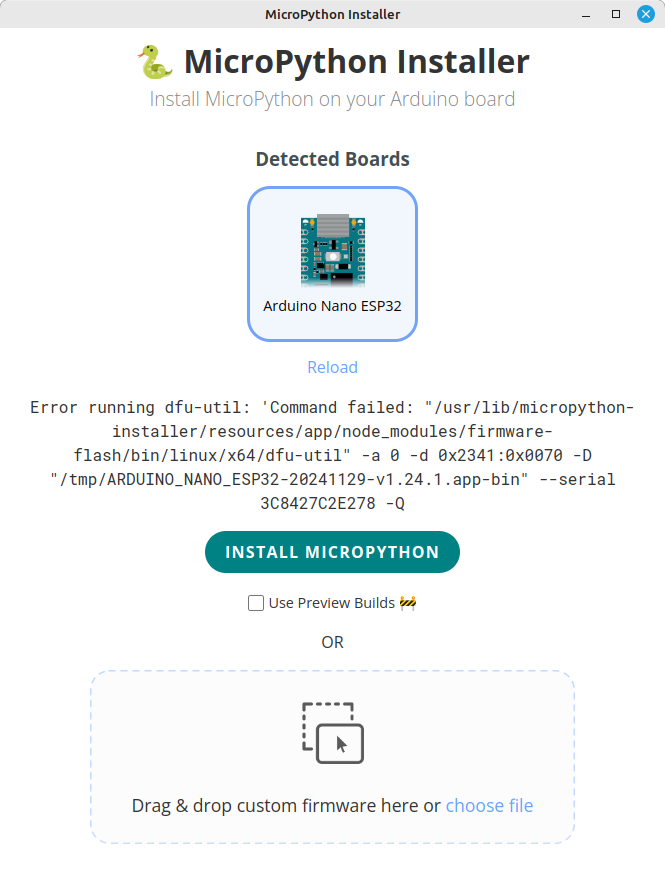
The board seems to be connected but, when I try to flash micropython,I get:
I've installed the packages for ESP32 platforms from Arduino Core and run the post-install scripts for adding udev rules (although it wasn't clear which applied to the Nano ESP32 so I ended up running all 3 and testing after each).
Hello @dduffy, can you start by testing the upload of a simple sketch (like the Blink example) from the Arduino IDE? This should work without any issue.
Make sure you have chosen the Arduino ESP32 Boards package in the Boards Manager (and not the esp32 package) for this board.
Thanks, let us know!
Hi @lburelli! I get a similar dfu-util error when trying to upload the Blink example.
Sketch uses 286109 bytes (9%) of program storage space. Maximum is 3145728 bytes.
Global variables use 30552 bytes (9%) of dynamic memory, leaving 297128 bytes for local variables. Maximum is 327680 bytes.
dfu-util 0.11-arduino4

Copyright 2005-2009 Weston Schmidt, Harald Welte and OpenMoko Inc.
Copyright 2010-2021 Tormod Volden and Stefan Schmidt
This program is Free Software and has ABSOLUTELY NO WARRANTY
Please report bugs to http://sourceforge.net/p/dfu-util/tickets/

Opening DFU capable USB device...
dfu-util: error get_status: LIBUSB_ERROR_PIPE
Device ID 2341:0070
Device DFU version 0101
Claiming USB DFU Interface...
Setting Alternate Interface #0 ...
Determining device status...
Failed uploading: uploading error: exit status 74
The ESPs come factory programmed with a DFU bootloader. If you accidentally erased it you might need to do this:
Please note that the DFU bootloader comes factory flashed. Should you for any reason erase the entire flash, the DFU bootloader will have to be re-installed. Please follow the instructions here to do so.
I'm still getting the same error when I open the micropython-installer. Are there additional steps I need to take to get the micropython firmware flashed?
You have to double-click the reset button to get it in DFU mode.
Otherwise there is this suggestion in the distribution ReadMe:
If you get an error message such as "No DFU capable device found" make sure you install the drivers for the board first if you're on Windows. On Linux you may need to adjust the udev rules.
So I double-clicked the reset button. The LED slow-flashed green. But still getting the same error on micropython-installer and error when the flash fails:
I've just about exhausted my suggestions. Sorry.
If you're using Linux with a desktop UI a mass storage device should show upon the desktop when you double click the reset button. Have you tried just dragging the .uf2 file and dropping it onto that?
@dduffy to get into bootloader mode I usually short pin B1 to GND, then plug in the USB connector, the led should light green, then remove the jumper and the led should light purple.
At this point the installer should recognize the Nano and install micropython. After installation remove and replace the USB connector and it should report something like
MicroPython v1.24.1 on 2024-11-29; Arduino Nano ESP32 with ESP32S3
Thanks @sumguy, that worked. I still got the initial error when I opened micropython-installer but the firmware flashed successfully. I don't think any of the micropython 101 tutorials or guides listed having to short two pins, etc. Followed @EmilyJane's DFU bootloader link instructions again but loaded micropython as you suggested - this info should probably be added to the Nano ESP32 micropython docs.
@EmilyJane I spent the last 30 minutes getting a little LED to flash ... loving this little thing and already have plans for weekend projects!! ... I can see this getting very addictive!
@dduffy The process for loading micro python has a similar method if you ever want to go back to Arduino c/c ++.
Micropython can only run on a single core of the Nano unfortunately and runs significantly slower than c, but it is adequate for a lot of projects. It has capabilities that can greatly optimize your python code like threads and asyncio or decorators that can increase the speed of a method X10.
The Nano ESP32 is a great choice for micro python and has a large amount of memory for storage and programs such as wifi networks, SD card data storage, BLE communication, TFT displays, mp3 players, neopixels, internet radio and a lot more.

 ... loving this little thing and already have plans for weekend projects!! ... I can see this getting very addictive!