I have an Arduino Uno R3 and was using it for a project. Now, when I try to plug it into a computer to transfer new code, the Port for the Arduino isn't seen nor does it appear in the Device manager (The port is there, but when I plug it in, it says that the device is not plugged in). Can anyone try to fix this problem?
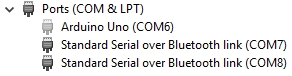

There are a number of similar posts on this type of problem. You might try searching this forum those posts if any of these suggestions do not work:
-
Get a magnifying glass and/or flashlight and check the USB interface IC on the Arduino Uno. If you purchased the board from an eBay seller, especially from China, there is a good chance the USB interface IC is a CH340/1 or a CP2102 or the PL2303HX. Those drivers need to be installed separately. Arduino USB interface ICs for the FTDI232 and the ATmega8 do not need to have the drivers installed from a separate source. They are in the Arduino installation package.
-
Try reinstalling the drivers for the Arduino by right clicking on the Arduino COM port Properties. You will likely need to use Admininstrator rights to make it work. It should be on a Properties button in there somewhere.
-
Unplug the Arduino, close the Arduino IDE. Make sure you are looking at your Desktop Wallpaper so no programs cover the activities that happen when you install an Arduino for the first time. Now, plug the Arduino in again. Did it install the drivers correctly?
There are lots of tutorials on these methods available in the Arduino forum as well as on the Web.
The CH340 drivers installed automatically for me and work fine. I have another UNO which uses FTDI and doesnt even register (play usb tone) when plugged in. Nor does it show in Device Manager.
The 'dead' one worked fine for about 3 days and then just stopped. My lasted uploaded sketch is still running because I can tell from the LED light flashing sequence.
Maybe this is because they are clones (I think) but, before you knock clones, just remember, if your PC or laptop isnt an IBM, its just a clone.
There are a number of things to try to narrow down your problem(s). This is coming from the viewpoint of somebody who does not know a lot of the ins and outs of PCs but enough to do some basic torubleshooting. Here are some suggestions and sometimes it can take a long time to pinpoint the specific problem:
- One of the easiest things you can try is to use your problem Arduino on another PC. To do this, download the latest Arduino IDE - either as a zip file or as a Windows installer. Unzip of install the software. It depends on what you want to do - test the installation or just the IDE. If it is just the IDE you want to test, it is easy enough to use the zip file and unzip it wherever. Once it is unzipped, plug in the Arduino board into your computer before you run the IDE. Let the drivers install automatically as Windows will search your computer for the drivers. You can also install them yourself.
If the Arduino board works on the alternate computer, something has gone wrong with your first system.
-
Download a slightly older version of the Arduino IDE as a zip file. Unzip it somewhere and open the Arduino executable. Plug in your board and see if you can get it to work.
-
Check your PC for other software that uses COM ports. If you have any software that allows you to interface with smartphones, I am TOLD that this can be a problem. I had a problem recently where the Arduino IDE would not upload programs to the board due to a COM port not being allowed access. You can search the forum or the Web for this type of thing. There are a number of people with the same problem. I do not recommend you uninstall any software. I am just shooting in the dark about some possibilities.
If you can upload programs to a working board, it is not likely the COM ports are an issue.
-
This brings me to the next thought - Sometimes a resettable fuse on the Uno can be tripped. I do not think the board will show on the PC at all if this happens. The fuse is located near the USB port. You can find it on the Uno schematic in the same area near the USB connector symbol. If the fuse was tripped, try leaving the board for a day and try it again.
-
It is worth having a good look at your board to see if any of the components or traces have burned out. A magnifying glass with a flashlight are good tools for this kind of checking. Check all over the board. Use the Uno schematic or whatever version's schematic for the board being used, for reference. Try checking the USB interface IC first and then the TX and RX lines.
For argument's sake, if the fuse was tripped and then the board works again a day or two later, you should find out why the fuse was tripped.
V = IR is the electronics enthusiast's best equation. Looking at the ATmega328P datasheet, each IO pin can source or sink 40 mA max. The Vcc and Ground pins are at 200 mA max. See section 30 of the datasheet for electrical characteristics.
Good luck!
Could the bad ftdi one that worked for three days be a counterfeit ftdi chip? Google ftdigate for details. It can work, and then windows update runs and it no longer works.
@DrAzzy: In the post 2 before yours, ReSummit provided a picture of the serial interface IC, an ATmega16U2 but did not say that in the post.
@ReSummit: If none of the other options work for you, you can buy an inexpensive Arduino from eBay and use it to reprogram the Arduino processor IC. If that does not work, you can also try reprogramming the ATmega16U2 usb-to-serial IC on the Arduino board. It has its own ICSP header near the upper left corner of the board. If none of those work, at least you have another Arduino.
For that matter, just about any Arduino should do, so, if you know somebody with one, follow the tutorial found here:
You would have to search the Arduino site for the proper source code for that IC. The ATmega328P will have its own code which is the bootloader.
There are also other inexpensive AVR programmers available from all kinds of places. In addition, there are also many good suppliers all over the world that provide other AVR programmers that are very reputable as well as having their own tutorials on programming AVRs. This last paragraph is simply an aside and is not something I recommend unless you are really interested in programming AVRs for different projects. Arduino is a great starter board as well as a very convenient package for many projects.
Back to your original post, ReSummit:
What happens if your try COM7 or COM8? Do you have other devices plugged into those USB ports? It should not matter but, you could try disconnecting those devices and plug in your board again and see what happens.
playinmyblues:
Back to your original post, ReSummit:
What happens if your try COM7 or COM8? Do you have other devices plugged into those USB ports? It should not matter but, you could try disconnecting those devices and plug in your board again and see what happens.
I've tried going into device manager and switching its COM port. Port 7 and 8 (being used by something) was assigned to the driver, but the computer still doesn't detect the arduino uno (not even a windows sound confirmation).
Also, I would like to do the IC programming if I wasn't kinda limited in time... (MESA Robotics is coming up on the 21st of May, and I would need the arduino by then.) If I do get another arduino, then I will certainly try it.
There is one more suggestion that might make it easy to test and use your board. Make a USB Linux OS.
I like to use this site for instructions, software, and even instructions on how to recover your USB drive if you mess it up - from pretty much anything you do to the USB drive.
Download the Universal USB Installer.
Download your preferred version of Linux as the ISO.
Follow the instructions on how to install it on your USB drive.
Your USB drive does not have to be more than about 8 GB. I think it only uses about 4 GB anyway. Make sure to allow persistence.
I prefer a Ubuntu version and have had good results with LXDE. I was looking for a lightweight Linux so it would boot faster.
CAUTION: Be sure to never install the OS to your computer. There is an icon that allows you to do this. This is a great way to revive an old computer whose hard drive bay no longer works.
Arduino installation:
Simply download the correct version of Arduino (32 or 64 bit).
Unpack the compressed tarball to something like the Desktop.
Open a terminal and cd to the directory.
type: ./install.sh
This will install an Arduino icon to the Desktop.
Open Arduino from the icon or, in the Arduino directory type ./arduino
Now, hopefully you can test your Arduino board.
This type of Linux is great for those times when you are not allowed to install your own software on PCs for one reason or another. Simply boot the PC from your USB drive. Consult your Systems Administrator if there is doubt about the use of this OS.
Your Arduino should show up under Ports.
Use the following to find its port in the /dev directory:
ls /dev
ONE MORE THING: Do not do any updates or upgrades to your USB Linux OS. Mine crashed everytime when I tried to restart it. Use the Systems Disk Creator on a pre-existing Linux to create a persistent USB Linux OS. This booted very slowly for me but it did allow for updates to the system.

