New user of the IDE (v 2.3.4). Not sure if the UI is not working correctly, or if I'm just confused.
Is there any way to open a saved sketch without opening a new IDE window?
When I first launch the IDE the sketch that is opened seems at times to be randomly selected (either a blank new sketch "sketch_feb16a.ino", or one of the previously saved sketches) — usually, it seems to be the sketch that had been open in the last IDE window that was closed, but my impressions are that this may not always be consistent. I'm not sure under what conditions the IDE opens with a new sketch (e.g., "sketch_feb16a.ino") shown.
Also, sometimes, the most recently used board is remembered when the IDE is launched, but sometimes it is not. Confused about this inconsistency in behavior.
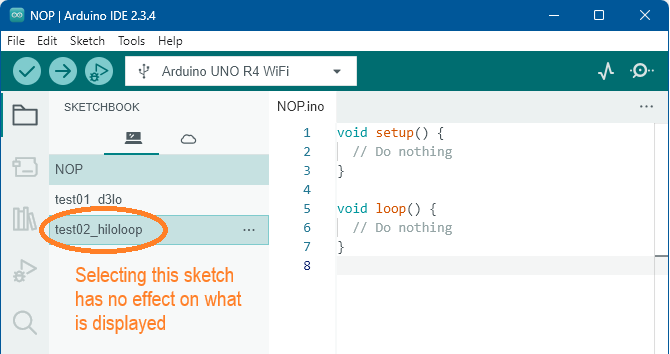
Regardless, if I click the sketchbook tab, I see a list of sketches, with the open sketch highlighted.
I had assumed that if I click once on another sketch, this would open (and display) that sketch instead. However, all that happens is that the sketch I clicked on is highlighted in the list:
Is this the expected behavior of the IDE Sketchbook?
To open another sketch, I must double-click the sketch name in the Sketchbook, but this opens the sketch in a new IDE window. I must then go back and close the original window. Is this the intended work flow?
Is there no way to switch between sketches without opening new IDE windows?
As you noticed, the default behavior is to open the sketch in an additional window, leaving the previous sketch open in its original window.
However, it is possible to configure Arduino IDE to use a different behavior, so that when you open a sketch, the sketch previously opened in that window will be closed. This is done via Arduino IDE's advanced settings. I'll provide instructions you can follow to do that:
Press the Ctrl+Shift+P keyboard shortcut (Command+Shift+P for macOS users) to open the "Command Palette".
A menu will appear on the editor toolbar:
Select the "Preferences: Open Settings (UI)" command from the menu. ⓘ You can scroll down through the list of commands to find it, or type the command name in the field.
A "Preferences" tab will open in the Arduino IDE main panel.
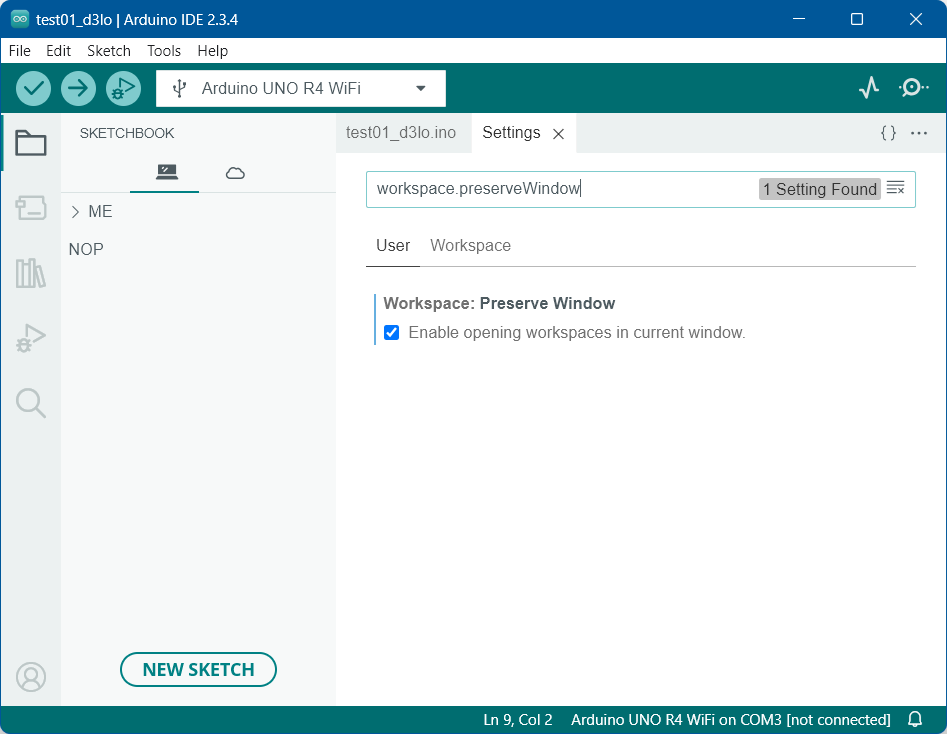
Type workspace.preserveWindow in the "Search Settings" field of the "Preferences" tab.
Uncheck the box under the "Workspace: Preserve Window" setting.
Close the Preferences tab by clicking its X icon.
Arduino IDE opens the saved sketches that were open at the time you exited the IDE previously.
It will fall back to starting with a new sketch open if the saved sketches that were open during a previous session are no longer accessible (e.g., you deleted or moved them), or if you never had any saved sketches open during a previous session of Arduino IDE (as is the case on the first startup after a fresh installation).
Something to note is that sketches opened via the File > Examples menu are opened as new sketches, so these will not be restored on subsequent IDE startups unless you saved the sketch.
In case you are interested in the boring details of how the sketch restoration system works, I provided information here:
Arduino IDE selects the board and port you had selected the last time you had a given sketch open.
If a new sketch is loaded on Arduino IDE startup, then it won't have that data, and so it is expected that no board or port will be selected in this case.
Yes, it is intended that you must double click to open the sketch.
It is intended. The reason is that the user might want to have multiple sketches open at the same time. It will be inconvenient for them to achieve that if the window is reused when opening sketches via the IDE.
@ptillisch Thank you for your detailed and informative response. I have one follow-up question:
I note that you used the plural (sketches) in the above sentence, and indeed, I've noticed on occasion that multiple sketch windows would open when I launch the IDE.
However, because each sketch is in its own window, and I must close them sequentially, one at a time, how is it possible for multiple sketches to be open simultaneously when I exit the last IDE window?
The reason the folder name is .theia is because Arduino IDE is built on the open source Eclipse Theia Platform IDE framework, which is where the launch configuration file system is implemented..
Because, in the window in which you had that sketch open, you opened Arduino IDE's integrated sketch debugger and clicked the icon ('Open "launch.json"') near the top right corner of the "DEBUG" view.
Because you did not click that icon in the windows of the other sketches.
Probably nothing bad.
In order to make the debugger more user friendly, Arduino IDE automatically generates an appropriate launch configuration for the selected board and debug probe (via the "Programmer" menu) each time you click the "Start Debugging" button. If the sketch has a .theia/launch.json file, the launch configuration for the selected board in the file will be overwritten with the generated launch configuration
There are two reasons why you might want to click that icon:
To view the generated launch configuration in order to determine the exact configuration of the debugger
To make a custom launch configuration
If you didn't have any specific reason for clicking the icon, or if you only clicked it to view the launch configuration, then deleting the .theia folder won't have any effect.
If you added a custom launch configuration to the launch.json file, then deleting the .theia folder would result in the loss of your custom launch configuration. However, if you had created a custom launch configuration, you would probably not be asking this question, so I'm doubtful this is the case.
If I decide to keep the default behavior, is there any configuration option to have the new IDE windows open maximized (if the parent window was maximized)?

 icon ('Open "launch.json"') near the top right corner of the "DEBUG" view.