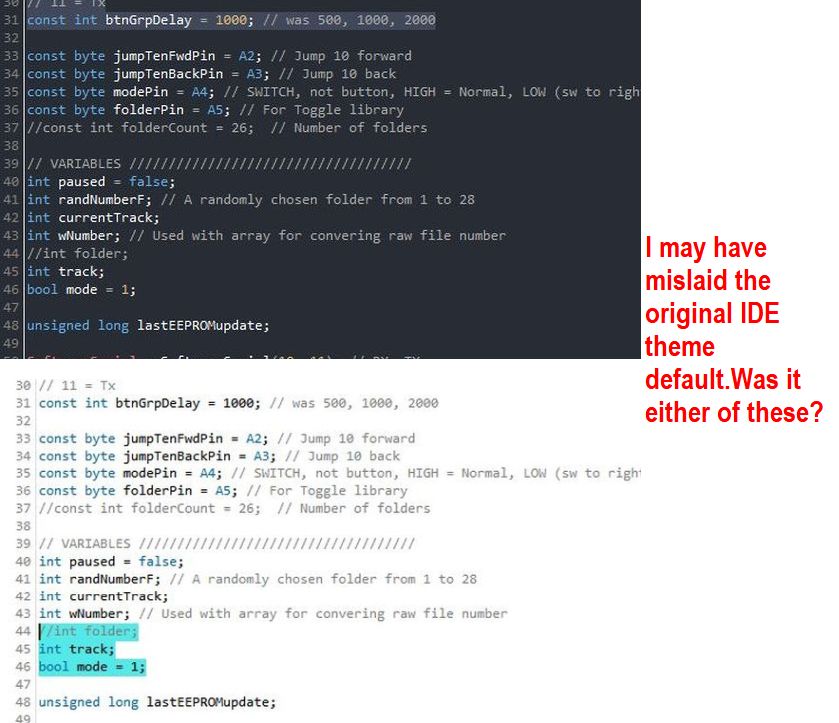
This seems more complicated than I'd expected! There is a drop down in IDE > File > Preferences > Settings > Theme which contains only 'Default theme'. Which naturaly raises the question of how to add more.
After further research I followed the instructions here to add an entirely new theme.
That gave me a ZIP which when unpacked included a folder called 'theme'. Going beyond the brief instructions, I renamed it to 'theme-OneDarkArduino' and placed it alongside the original here:
C:\Program Files (x86)\Arduino\lib\theme
However, contrary to my expectation, that did not add the new theme to the drop-down list.
So I settled for renaming the original to 'theme-original', and the new one to plain 'theme'. So I have a new default (which I rather like at first sight) and I've learned a bit more. But:
Q1: How to populate that drop-down list?
Q2: Where to find more themes to list in it?
Q3: Is there a much easier way to simply darken the /* comments?
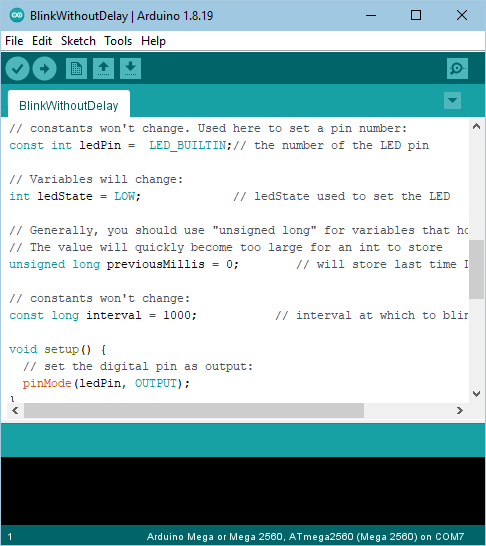
Completely sympathise. The light grey you end up with for comments on a Windows 10 install of Arduino IDE 1.8 was a very poor choice for legibility. For simple programs I often use Notepad++ instead of the IDE and just cut and paste between them to compile.
But, today I decided to edit theme.txt and now I wish I had not. Aside from the protection issues (it seems to have been installed with protection settings that Windows doesn't understand) when I claimed ownership of the file and edited it with new colours for comments the file saved fine, but when I startup the IDE it overwrites the changes back to the default! I've tried it twice and that definitely seems to be what is happening! I looked to see if there were any other template instances of theme.txt in the filesystem that were being copied over the main one, but found no other instances.
So now my question is how do I change the comment colours and make them stay changed!
I fully agree on the difficulty to get an acceptably working dark theme setup for IDE 1.x.
After a lot of effort, trying to somewhat resemble the "Dark (theia)" of IDE 2 which I like, I ended with the attached. The main problem is that there are just not enough different text options available.
If you would like to try my effort, just copy the attached "My_Dark.zip" into the Arduino IDE "theme" folder. No need to extract or do anything else. It should then show up in your preferences drop down. You need to restart the IDE for any change to take effect.
These lines are only comments. They don't have any functional effect on the theme.
You need to change the value of the editor.comment2.style property farther down in the file.
If you want to install it that way, you must replace the existing theme.
If you prefer a more sophisticated and maintainable installation technique, You have two options for installing themes to the sketchbook: direct installation or installation as "ZIP" files.
I'll provide instructions for both options below;
Direct installation
This installation option is best if you are going to use a single custom theme.
Select File > Preferences from the Arduino IDE menus.
Take note of the path shown in the "Sketchbook location" field.
This is the path to your "sketchbook folder".
Click the Cancel button.
Select File > Quit from the Arduino IDE menus.
Open the sketchbook folder in your file browser.
If you are using Windows, this would be File Explorer.
Create a subfolder in your sketchbook folder named theme.
Put the theme directly into the theme folder you created.
This installation option is best if you want to switch between multiple custom themes, or if you are using a pre-made theme that supports this installation method.
The second option is to put the theme in a "ZIP" file, then put that in the theme subfolder of the sketchbook folder.
Select File > Preferences from the Arduino IDE menus.
Take note of the path shown in the "Sketchbook location" field.
This is the location of your "sketchbook folder".
Click the Cancel button.
Select File > Quit from the Arduino IDE menus.
Open the sketchbook folder in your file browser.
If you are using Windows, this would be File Explorer.
Create a subfolder in your sketchbook folder named theme.
Put the theme "ZIP" file directly into the theme folder you created.
Start the Arduino IDE.
Select File > Preferences from the Arduino IDE menus.
Select the theme from the File > Preferences > Theme menu.
Select File > Quit from the Arduino IDE menus.
Start the Arduino IDE.
The theme you selected from the menu will now be active.
The folder and "ZIP" file structure must look like this:
There is a sort of tricky thing about this installation option. The theme must be in the root of the "ZIP" file, NOT in a subfolder. Some "ZIP" utilities make that difficult or even impossible (especially the macOS one), but a Windows user won't have any difficulty:
Select all the files of the theme in Windows File Explorer.
Right click on the selected files.
Select Send to > Compressed (zipped) folder from the context menu.
The awesome thing about this option is it allows you to have multiple themes installed (each in its own "ZIP" file). You can chose which one you prefer via the "Theme" menu of the Arduino IDE's File > Preferences dialog. This menu will include the option to select the "Default theme", which is the one installed with the IDE.
Let's say you had two themes, one you wanted to show up in the Theme menu as "MyCoolTheme" and another you wanted to show up as "MyOtherCoolTheme", the folder structure should look like this:
I did not know you can create a "theme" folder in your sketchbook, resulting in loosing your themes when installing a new version (don't ask). I have now moved my .zip themes to a sketchbook theme folder and it works just fine.
You are welcome. The old system of modifying the theme in the Arduino IDE installation folder was really not great.
The option of installing to the sketchbook is a nice enhancement contributed by the Arduino community. It is unfortunate it was not formally documented so that more people could be aware of the feature.
Many thanks. Better late than never! I’ll get into implementing those detailed instructions asap.
Meanwhile I’m still using that theme I described in my opening post four months ago. The only downside is the grey colour used for outlining errors, which I often find hard to locate.
Thanks, I've been on the case for an hour or so but I'm struggling!
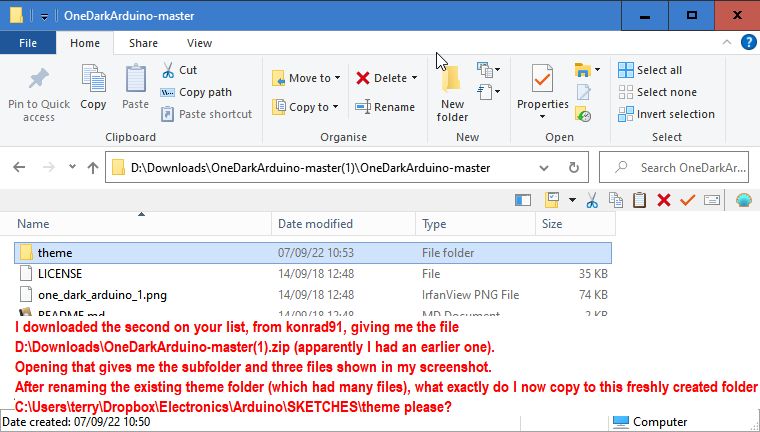
I downloaded the second on your list, from konrad91, giving me the file
D:\Downloads\OneDarkArduino-master(1).zip (apparently I had an earlier one).
Opening that gives me the subfolder and three files shown in my screenshot.
After renaming the existing theme folder (which had many files), what exactly do I now copy to this freshly created folder
C:\Users\terry\Dropbox\Electronics\Arduino\SKETCHES\theme please?
EDIT: Minutes later. I think I've got it. I compressed only the subfolder 'theme' and copied that. Now shows in the drop-down. However appears to be a bad choice as it looks identical to my earlier one (that's no longer maintained). Will now try another to make sure.