Hi,
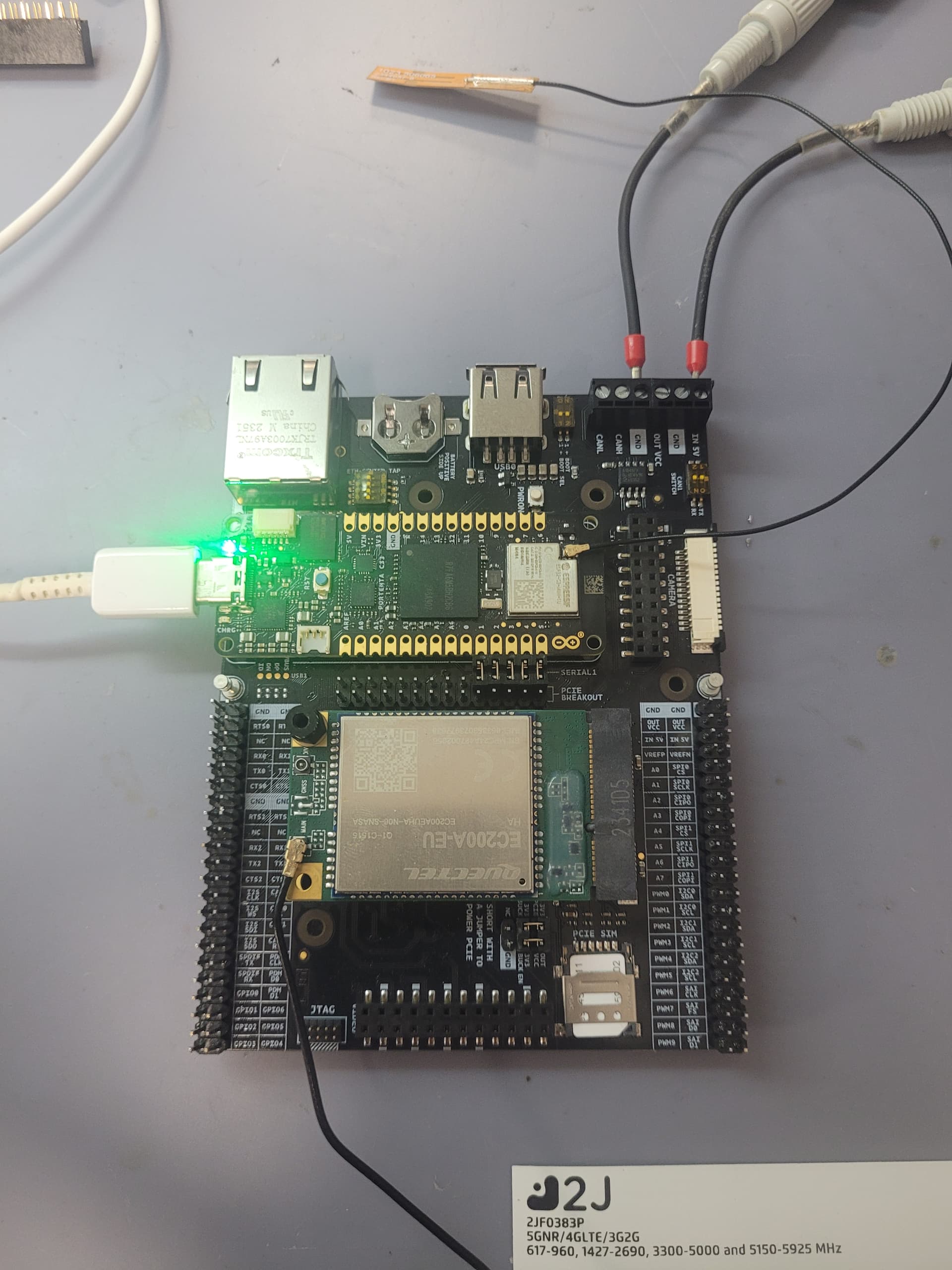
I'm trying to connect to ArduinoCloud with the new 4G module (EMEA) using Portenta C33 on the Portenta Mid Carrier. Http requests and SMS etc. work all fine but haven't seen any tutorials or code examples for how to connect to the ArdunioCloud.
Hi @nilsjuri. This hardware is not currently supported for use as an Arduino Cloud IoT Device.
However, although you can't use it with the IoT features of the Arduino Cloud platform, you can use the Arduino Cloud Editor to create, compile, and upload sketches with the Portenta C33 board (including sketches that use the capabilities of the Portenta Mid Carrier and Pro 4G Module):
All marketing material around the 4G module mention this feature. The product feature section on the Arduino store page says: The Arduino Pro 4G Module allows you to connect to your devices via Arduino Cloud, making error analysis, firmware updates, and remote maintenance easier and faster than ever.
I have bought it to do exactly this as my use case requires cellular connectivity and Arduino Cloud dashboards. I have heard there will be a release soon for the corresponding libraries. Do you know when they will be available even if in beta status?
I don't have any information about release schedules.
Arduino's open source libraries are always available for beta testing.
Development versions of libraries should only be used to contribute to the development work by performing beta testing and giving feedback to the library developers about any defects you discover. The development versions of libraries are not intended for production use and Arduino doesn't offer any guarantees of stability or compatibility when using this version of a library.
I'll provide instructions you can follow to install the beta tester version of a library in your Arduino Cloud account:
Open the library's GitHub repository homepage in your web browser. ⓘ The official Arduino library repositories are listed here.
Click the "Code ▾" button you see on the library repository home page.
Select Download ZIP from the menu.
A download of the ZIP file of the library will start.
Click the following link to open the list of your Arduino Cloud sketches in the web browser: https://app.arduino.cc/sketches
Click on any sketch, or use the CREATE > New sketch button to create a new sketch.
The sketch will open in Arduino Cloud Editor.
Click the icon that looks like shelved books ("Libraries") in the bar on the left side of the Cloud Editor page.
The "Libraries" panel will open.
Click the upward pointing arrow icon at the top of the "Libraries" panel.
The "Open" dialog will open.
Select the "ZIP" file of the library in the dialog.
Click the "Open" button.
The "Open" dialog will close.
You will now see an indicator at the top of the "Libraries" panel in place of the upward pointing arrow icon as the library is imported. Wait for this indicator to disappear.
These instructions will have installed the latest beta tester version of the library. The beta test version of the library will now be used when you compile or upload your sketches.
ⓘ If you later decide you want to remove the imported library from your Arduino Cloud account, you will find it under the "Custom" tab of the "Libraries" panel.
If you discover any problems, you can report them to the developers by submitting an issue to the library's GitHub repository. Or even better, submit a pull request (PR) for a fix to the problem you discovered!
! The beta tester version you installed will become outdated whenever the library developers make a new relevant change in the repository. Since the whole point of beta testing is to test the latest development of a project, it is important to make sure that you update the library as needed. You can do this by removing the imported library from your Arduino Cloud account and then following the instructions above to import the latest version.
Please let me know if you have any questions or problems while following those instructions.
Thank you and looking good, waiting for the release! Will both H7 and C33 be able to connect to Arduino Cloud incl. read/write dashboard variables or just the H7?
I'm trying to setup the portenta C33 and EMEA 4G module via the mid carrier to work in Arduino cloud.
I followed all the information above but had no luck getting it running.
I have followed both the HTTPS and ModemTerminal example codes, and they compile just fine.
But no serial output. Even added some code to enable the buildin LEDs for faultfinding to see if the code gets stuck somewhere, but even the doesn't run.
Code Snippet below,
Serial.begin(115200);
    pinMode(34, OUTPUT);
    pinMode(34, LOW);
    while (!Serial);

    // cellular.setDebugStream(Serial); // Uncomment this line to enable debug output
    cellular.begin();

    if(String(SECRET_PINNUMBER).length() > 0 && !cellular.unlockSIM(SECRET_PINNUMBER)){
        Serial.println("Failed to unlock SIM card.");
        while(true); // Stop here
    }
Must say as a newcomer to Arduino I found the WiFi setup to Arduino Cloud easy to implement and debug but with cellular things are a different story, little to no resources are available for the Portenta models with no active working examples for the c33.
I'm completely stumped, even went back to some WiFi code I wrote to verify that the board didn't get damaged and that still works fine together with the serial monitor.
while (!Serial);

    cellular.setDebugStream(Serial); // Uncomment this line to enable debug output
    cellular.begin();

    if(String(SECRET_PINNUMBER).length() > 0 && !cellular.unlockSIM(SECRET_PINNUMBER)){
        Serial.println("Failed to unlock SIM card.");
        while(true); // Stop here
    }
I'm surely missing something stupid but can't seem to figure it out.
I tried going at this in every possible way I could think of.
Want to say maybe I bricked the unit somehow, but Arduino Cloud via wifi works perfectly so I'm not sure.
 Development versions of libraries should only be used to contribute to the development work by performing beta testing and giving feedback to the library developers about any defects you discover. The development versions of libraries are not intended for production use and Arduino doesn't offer any guarantees of stability or compatibility when using this version of a library.
 this is great news, thank you