Low-level manipulation of LED matrix on UNO R4 WiFi

I am trying to figure out how to manipulate the UNO R4 WiFi LED matrix at low levels. I've started to dabble with this primarily for my own edification, with no specific practical goal in mind.

I did find this 2023 topic, which provided much useful information,* and I have been skimming through the Arduino_LED_Matrix.h code, where I found the turnLed() function (turns one LED on or off). Unfortunately, when using turnLed() to turn on one LED, all other LEDs in the matrix are turned off.

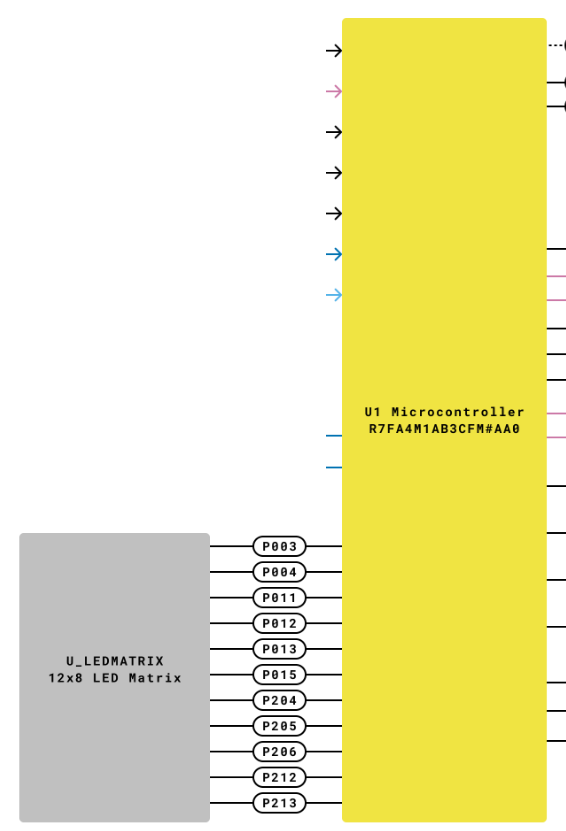
The circuit diagram reveals why the LEDs cannot be independently addressed, but it seems like it should be possible to turn on specific groups of LEDs at the same time. For example, if Pin 9 ("ROW10") is set LOW and all other pins/rows set HIGH, should that light up LEDs 91, 93, and 95 (simultaneously)?

My main question is to ask whether there is a "quick & dirty" way to individually/independently set the states of the matrix pins 0–10 (which evidently also have designators P003...P213 elsewhere in the circuit schematics). For my example above, I would evidently need to make P212 LOW, and the other ten HIGH. Is there some register or other method available to do this?

Unfortunately, the source code for turnLed() is a bit inscrutable to the uninitiated, so it does not provide clues that I can use.


*I concede that I have not yet read through the linked article on Charlieplexing— studying this material should clear up some general issues (such as the fact that manipulating pin mode from OUTPUT to INPUT is also part of the multiplexing technique), but I don't think it will answer my main question above; how to directly manipulate the state (and mode) of the eleven matrix pins.

And since I know that you like to see and critique code, here is a toy sketch from my initial experiments with the turnLed() function (not directly related to the main questions posed above, but may still be of interest for some):

#include "Arduino_LED_Matrix.h"

bool bmp[96] = { 1, 1, 0, 0, 0, 0, 0, 0, 0, 0, 1, 1,
                 1, 0, 0, 1, 0, 0, 0, 0, 1, 0, 0, 1,
                 0, 0, 0, 0, 1, 0, 0, 1, 0, 0, 0, 0,
                 0, 0, 0, 0, 0, 1, 1, 0, 0, 0, 0, 0,
                 0, 0, 0, 0, 0, 1, 1, 0, 0, 0, 0, 0,
                 0, 0, 0, 0, 1, 0, 0, 1, 0, 0, 0, 0,
                 1, 0, 0, 1, 0, 0, 0, 0, 1, 0, 0, 1,
                 1, 1, 0, 0, 0, 0, 0, 0, 0, 0, 1, 1 };

void setup() {
}

void loop() {
  for (int i = 0; i < 96; i++) {
    turnLed(i, bmp[i]);
  }

  turnLed(95, false);
}


Results:


Feel free to ignore this.   :upside_down_face:

From what I read, no direct port manipulation as with the ATmega328P... but someone wrote the library which eventually talks to the hardware driver... maybe low level libraries will divulge the info...

The UNO R4 WiFi has a similar/equivalent connection between the Renesas RA4M1 and the matrix:


But the question remains: how to manipulate the mode and value of the pins P002...P213?

Hi @grb.

You can use pinMode and digitalWrite if you like. The pins on the RA4M1 connected to the matrix are mapped to Arduino pins:

Here is a simple sketch to blink LED 1 in the matrix:

void setup() {}
void loop() {
  pinMode(35, OUTPUT);
  pinMode(31, OUTPUT);
  digitalWrite(35, HIGH);
  digitalWrite(31, LOW);
  delay(1000);

  pinMode(35, INPUT);
  pinMode(31, INPUT);
  delay(1000);
}

Or you can use use the lower level API from the Renesas FSP (which the "Arduino UNO R4 Boards" core is based on) if you prefer:

https://forum.digikey.com/t/theory-behind-the-arduino-uno-r4-wifi-12-x-8-led-display-matrix/43827#p-85635-how-can-i-directly-access-an-led-from-the-arduino-uno-r4-led-matrix-7

1 Like

Thank you! This is very helpful.

Sorry my knowledge of C/C++ syntax is not yet at 100% — does the above imply that I could alternatively use BSP_IO_PORT_02_PIN_05 or P205 as synonyms for 35 when addressing this pin in my code?

Will explore this, as well!

That sounds correct, but the current for all three LEDs would be flowing through the resistor in series with pin 9, resulting in lower brightness than just having one or two LEDs on (by setting some of the other pins to INPUT mode instead of outputting a HIGH). Even worse on some of the other pins, where up to 10 LEDs could be lit simultaneously.

If you want multiple LEDs to appear ON at the same time with consistent brightness, then you would end up multiplexing the display, with only a single LED being ON at any given time, similar to what is already done in the library.

Incidentally, the display buffer is directly accessible, which allows you to set an LED ON or OFF, while letting the library handle the multiplexing.

#include "Arduino_LED_Matrix.h"   // Include the LED_Matrix library

ArduinoLEDMatrix matrix;          // Create an instance of the ArduinoLEDMatrix class

void setup() {
  matrix.begin();                 // Initialize the LED matrix
}

void loop() {
  //turn on one LED at a time, starting at upper left corner, until the entire array is lit
  for (size_t i = 0; i < 96; i++) {
    //framebuffer is an array of uint8_t with 12 elements
    framebuffer[i / 8] = framebuffer[i / 8] | (1 << (i % 8));
    delay(250);
  }
  delay(5000);
  matrix.clear();
}
1 Like

Those are the identifiers for the Renesas FSP. You can use them with the FSP functions, but you can not use them with functions that take an Arduino pin number as a parameter. The g_pin_cfg array from which the snippet in my previous post was referenced is the mapping between the FSP identifiers and the Arduino pin numbers. The Arduino pin number is the index of the array.

A post was merged into an existing topic: Use of Dn pin identifiers in code

The LEDs are connected via "Charlieplexing", which means that to light "all" of them (or even "more than 10" of them), you need to dynamically change the values of the port at a rate higher than the persistence of vision limits.

Charlieplexing is explained here: https://www.instructables.com/How-to-drive-a-lot-of-LEDs-from-a-few-microcontrol/ (among other places.) Basically, to drive a particular LED, you set the pin connected to its anode HIGH, the pin connected to its cathode LOW, and set all of the other pins to high-impedance (ie INPUT) You should be able to light up 10 LEDs at a time by setting 10 pins HIGH and one LOW, or vis versa, but they may not be "conveniently located.)

The R4 WiFi apparently uses a total of 11 pins to drive the array, so it could theoretically drive 110 LEDs , so some of the 10-at-a-time combinations won't have all 10 LEDs.

This label depends on two physical items, the intended port and pin number. Using this label requires two lookup tables, for the port address and pin mask. This implied code has to exist in your firmware and has to perform both lookups.

Surprisingly, by cursory visual inspection, the LED brightness does not (always) seem to be significantly affected by the number of LEDs turned on (when all pins are set to OUTPUT mode).

The code below cycles through all 211 possible states of the input pins, and to a large extent, the lit LEDs seem to have a brightness comparable to what is achieved when turning on a single LED. For certain pin states, there are some LEDs that are noticeably brighter or dimmer than the others, but overall, I was surprised at the relatively high brightness.

An interesting observation was that when LEDs with significantly lower brightness appeared, they seemed to be more likely to occur in the upper left quadrant of the matrix; similarly, when LEDs with significantly higher brightness appeared, they seemed to be more likely to occur in the lower right quadrant of the matrix.


#include "Arduino_LED_Matrix.h" 

ArduinoLEDMatrix matrix;  // Create an instance of the ArduinoLEDMatrix class

const u_int8_t NROWS = 11;
const u_int8_t row0 = 28u;
u_int16_t counter = (1ul << NROWS) - 1ul;

void setup() {
  for (u_int8_t i = 0; i < NROWS; i++) {
    pinMode(row0 + i, OUTPUT);
  }
}

void loop() {
  for (u_int8_t i = 0; i < NROWS; i++) {
    digitalWrite(row0 + i, !(counter & (1 << i)));
  }

  delay(200);
  counter = (counter - 1ul) % (1ul << NROWS);   // Go to next state
}

OK, I found something unexpected, and would appreciate any assistance provided in coming up with an explanation.

In my tests, all pinModes for digital pins 2838 (LED Matrix Pins 0–10) where set to OUTPUT, and all pins were initially set HIGH (which extinguishes the LED matrix, as expected).

The following code works as expected:

digitalWrite(38, HIGH);    // ROW09
digitalWrite(37, LOW);     // ROW10

The result is to turn on LEDs 91, 93, and 95 in the 8th row of the matrix.

In addition, the following code also works as expected:

digitalWrite(38, LOW);     // ROW09
digitalWrite(37, HIGH);    // ROW10

The result is to turn on LEDs 73, 75, 77, 79, 81, and 83 in the 7th row of the matrix, as well as 85, 87, and 89 in the 8th row.

Now, for the surprise:

digitalWrite(38, LOW);     // ROW09
digitalWrite(37, LOW);     // ROW10

I would have expected this to turn on all odd-numbered LEDs in both the 7th and 8th rows of the LED matrix (i.e., the union of the two previous sets of lit LEDs).

Instead, this is the result:

The unexpected outcome is that LEDs 73, 75, and 77 in the 7th row of the matrix are not turned on.

Another clue (difficult to see in the image, but apparent in real-life observation) is that LEDs 91, 93, and 95 are somewhat brighter than the other 6 LEDs.

Any takers? The schematic diagram is available here, and reproduced below, for your convenience:

The resistors are causing the unexpected result.
Resisor R16 on row 9 has the current from six LEDs flowing through it (79, 81, 83, 85, 87, 89), while resistor R14 on row 10 only has the current from three LEDs (91, 93, 95). This causes LEDs 73, 75, and 77 to have too little voltage across them to light up, and caused LEDs 91, 93, and 95 to be brighter because there is less voltage drop across R14 then R16.

1 Like

It is not quick and dirty, it is quite complex actually. But I got the LEDs to play Conway's Game of life, with a UNO 4 WiFi. Each LED was scanned in turn to produce a note of each position in the pattern.

You can find it here

Along with where to find the code to do it.