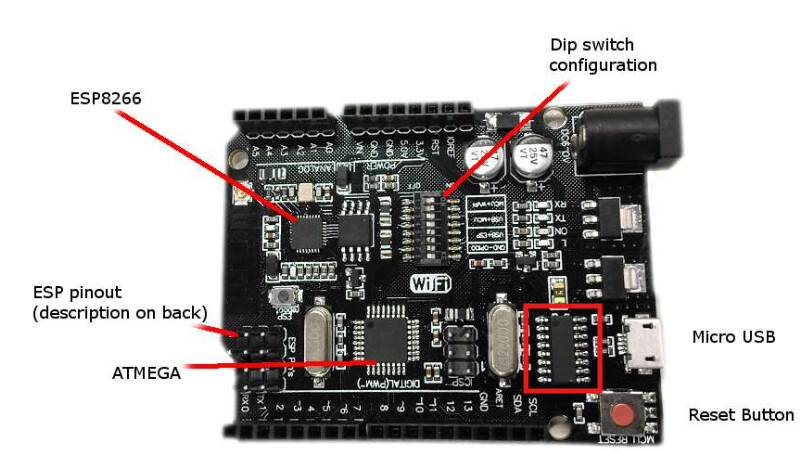
I have bought a Duinotech UNO r3 Main Board with Wi-Fi XC4411 with integrated ESP8266 and ATmega328P from Jaycar along with other components to build a audio lure for conservation - to kill stoats etc that decimate native species eg Kiwi.
I'm working on a HP Elitebook 830 G5 with the latest microsoft and using chrome as my browser.
I have spent the last couple of days trying to just get the board visible in Arduino IDE (2.3.4). I have also installed ArduinoCloudAgent (1.6.1-windows-386-installer) but cannot get the board connected to my home wifi / network. Both the IDE and Cloud seem to open and run but they cannot 'see' my board. The 'port' is greyed out as an option.
I have searched all of the forums and tried most suggestions. I have downloaded various drivers such as XC4411_softwareMain_91702, CH34x_Install_Windows_v3_4 and CH341SER but the only one that shows up in my computers device manager > USB connector managers > is the factory one.
You will need both the AVR Library and the ESP8266 library board packages. When programming the MCU, use the AVR library UNO R3 option. When programming the ESP8266 chip, use the ESP8266 library.
As far as I understand, the driver shown in the graphic is for USB-C support, but this board seems to have a micro-usb connector so I don't think that the driver you are looking at is related to your board.
Could it be that your USB cable is the problem here? Have you tried another one? You are using a data cable not just a charger cable? If you have installed the driver then with the DIP switches set as per row 1 of the table, Windows should be detecting the CH340 UART. Could also possibly be faulty DIP switch contacts but you would need a multi-meter on the continuity setting to check that.
The chip marked in red at the right bottom looks like the CH340. Assuming Windows, the driver that you need is more than likely the CH341SER. If using Windows 11 (not sure about Windows 10), the driver should have been installed automatically.
I would uninstall all drivers that you did install including the CH340 driver. Next install the CH340 driver using CH341SER
Disconnect the board.
Run CH341SER.
Once installation is finished CH341SER will tell you that the driver is pre-installed successfully.
Connect the board, you should get an entry in Windows device manager under ports.