Avrdude: stk500_recv(): programmer is not responding

I have same issue and procedure is not working for me.

I got this output when verbosing the upload

Sketch uses 924 bytes (2%) of program storage space. Maximum is 32256 bytes.
Global variables use 9 bytes (0%) of dynamic memory, leaving 2039 bytes for local variables. Maximum is 2048 bytes.
"C:-------------------AppData\Local\Arduino15\packages\arduino\tools\avrdude\6.3.0-arduino17/bin/avrdude" "-CC:------------\AppData\Local\Arduino15\packages\arduino\tools\avrdude\6.3.0-arduino17/etc/avrdude.conf" -v -V -patmega328p -carduino "-PCOM5" -b115200 -D "-Uflash:w:C:-----------\AppData\Local\arduino\sketches\3EF78D54DF801D6C3C469C7C5EB11D10/sketch_be01.ino.hex:i"

avrdude: Version 6.3-20190619
Copyright (c) 2000-2005 Brian Dean, http://www.bdmicro.com/
Copyright (c) 2007-2014 Joerg Wunsch

     System wide configuration file is "C:\-------AppData\Local\Arduino15\packages\arduino\tools\avrdude\6.3.0-arduino17/etc/avrdude.conf"

     Using Port                    : COM5
     Using Programmer              : arduino
     Overriding Baud Rate          : 115200
     AVR Part                      : ATmega328P
     Chip Erase delay              : 9000 us
     PAGEL                         : PD7
     BS2                           : PC2
     RESET disposition             : dedicated
     RETRY pulse                   : SCK
     serial program mode           : yes
     parallel program mode         : yes
     Timeout                       : 200
     StabDelay                     : 100
     CmdexeDelay                   : 25
     SyncLoops                     : 32
     ByteDelay                     : 0
     PollIndex                     : 3
     PollValue                     : 0x53
     Memory Detail                 :

                              Block Poll               Page                       Polled
       Memory Type Mode Delay Size  Indx Paged  Size   Size #Pages MinW  MaxW   ReadBack
       ----------- ---- ----- ----- ---- ------ ------ ---- ------ ----- ----- ---------
       eeprom        65    20     4    0 no       1024    4      0  3600  3600 0xff 0xff
       flash         65     6   128    0 yes     32768  128    256  4500  4500 0xff 0xff
       lfuse          0     0     0    0 no          1    0      0  4500  4500 0x00 0x00
       hfuse          0     0     0    0 no          1    0      0  4500  4500 0x00 0x00
       efuse          0     0     0    0 no          1    0      0  4500  4500 0x00 0x00
       lock           0     0     0    0 no          1    0      0  4500  4500 0x00 0x00
       calibration    0     0     0    0 no          1    0      0     0     0 0x00 0x00
       signature      0     0     0    0 no          3    0      0     0     0 0x00 0x00

     Programmer Type : Arduino
     Description     : Arduino

avrdude: stk500_recv(): programmer is not responding
Hardware Version: 4744608
Firmware Version: 0.4611299
avrdude: stk500_recv(): programmer is not responding
Vtarget : 420030.5 V
Varef : 198086406.4 V
Oscillator : 0.531 Hz
SCK period : 21438732.7 us

avrdude: stk500_recv(): programmer is not responding
avrdude: initialization failed, rc=-1
Double check connections and try again, or use -F to override
this check.

avrdude: stk500_recv(): programmer is not responding

avrdude done. Thank you.

Failed uploading: uploading error: exit status 1

Topic split from Upload fails: "stk500_recv(): programmer is not responding".

Please do not hijack topics.


So your board is a Nano. Your output indicates that you used the 328P option under tools/processor; have you tried the other options?

Did your board ever work?
Did you select the correct port?

1 Like

That is the first time i´m using th board...i think it is a UNO, but I´m not sure. I've tried to select other boards without success. The port selection is ok. But the error avrdude: ser_open(): can't set com-state for "\.\COM3" is displayed. And at the monitor of the upload I find the detail Avrdude: stk500_recv(): programmer is not responding . Any idea ?

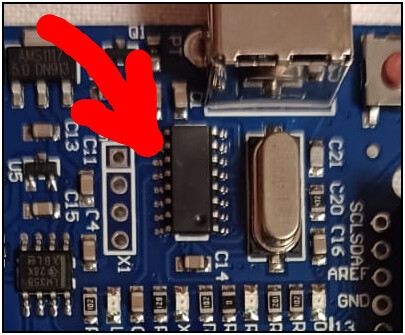
Post a clear picture.

Hi @cazap2000.

This "can't set com-state for ..." error occurs when uploading to the boards that use specific batches of the WCH CH340 USB chip. The problem only occurs when using the latest version of the CH340 driver.

The affected users have reported that doing a "roll back" to an older version of the driver was an effective workaround. You can give that a try.

I'll provide instructions you can follow to do that:

  1. Click the following link to download the previous version of the driver from the chip manufacturer's website:
    https://www.wch-ic.com/downloads/file/65.html?time=2023-03-16%2022:57:59
  2. Wait for the download to finish.
  3. Run the downloaded CH341SER.EXE file.
  4. A "User Account Control" dialog may now appear asking "Do you want to allow this app to make changes to your device?". Click the "Yes" button.
  5. A "DriverSetup(X64)" dialog will open. Click the "INSTALL" button in the dialog.
  6. Wait for the driver installation to finish, as indicated by the appearance of a "Driver install success!" dialog.
  7. Click the "OK" button in the "Driver install success!" dialog.
    The dialog will close.
  8. Click the X icon at the top right of the "DriverSetup(X64)" dialog
    The dialog will close.
  9. Close Arduino IDE if it is running.
  10. Connect the Arduino board to your computer with a USB cable.
  11. Open the Windows Device Manager.
  12. Select View > Devices by type from the Device Manager menus.
  13. Open the "View" menu.
  14. If there is a to the left of the "Show hidden devices" menu item, click on "Show hidden devices" to disable it.
  15. Open the "Ports (COM & LPT)" section of the Device Manager tree.
  16. You should see a port identified as "USB-SERIAL CH340 (COMn)" under the "Ports (COM & LPT)" section (where "COMn" is some serial port e.g., COM4). Double click on that item.
    The "USB-SERIAL CH340 (COMn) Properties" dialog will open.
  17. Select the "Driver" tab of the "USB-SERIAL CH340 (COMn) Properties" dialog.
  18. You will see a "Roll Back Driver" button in the dialog. If it is not clickable, perform the following instructions:
    1. Click the "Update driver" button.
      An "Update Drivers Device - USB-SERIAL CH340 (COMn)" dialog will open.
    2. Click on "Search automatically for drivers" in the "Update Drivers Device - USB-SERIAL CH340 (COMn)" dialog.
    3. You should now see the driver installation wizard update the driver. Wait for the update to finish, as indicated by the message "Windows has successfully updated your drivers" in the dialog.
      :exclamation: It is possible you will instead see the message "The best drivers are already installed". If so, please stop following the instructions here and reply on the forum thread to let me know. I'll provide alternative instructions you can follow.
    4. Click the "Close" button in the "Update Drivers Device - USB-SERIAL CH340 (COMn)" dialog.
      The dialog will close.
  19. Click the "Roll Back Driver" button in the "USB-SERIAL CH340 (COMn) Properties" dialog.
    The "Driver Package rollback" dialog will open.
  20. Click the radio button next to "My apps don't work with this driver" in the "Driver Package rollback" dialog .
  21. Click the "Yes" button.
    The "Driver Package rollback" dialog will close.
  22. Click the "Close" button in the "USB-SERIAL CH340 (COMn) Properties" dialog.

Now start Arduino IDE again and repeat whatever you were doing before when you encountered that error before. Hopefully this time you will not encounter that "can't set com-state" error during the sketch upload.


That is my board.

I can see that, indeed, your board has the dodgy "CH340" chip that is incompatible with the latest driver versions.

The CH340 chip normally has labeling that looks like this:

📷

SparkFun - CC BY-SA 4.0 (cropped)

But the chip on your board doesn't have any labeling:

So just follow the instructions I provided and it should start working after that.

1 Like

Unfortunately, it didn't work.
I'm getting the following error, when verbosing upload output:

Sketch uses 924 bytes (2%) of program storage space. Maximum is 32256 bytes.
Global variables use 9 bytes (0%) of dynamic memory, leaving 2039 bytes for local variables. Maximum is 2048 bytes.

avrdude: Version 6.3-20190619
Copyright (c) 2000-2005 Brian Dean, http://www.bdmicro.com/
Copyright (c) 2007-2014 Joerg Wunsch

     Using Port                    : COM5
     Using Programmer              : arduino
     Overriding Baud Rate          : 115200
     AVR Part                      : ATmega328P
     Chip Erase delay              : 9000 us
     PAGEL                         : PD7
     BS2                           : PC2
     RESET disposition             : dedicated
     RETRY pulse                   : SCK
     serial program mode           : yes
     parallel program mode         : yes
     Timeout                       : 200
     StabDelay                     : 100
     CmdexeDelay                   : 25
     SyncLoops                     : 32
     ByteDelay                     : 0
     PollIndex                     : 3
     PollValue                     : 0x53
     Memory Detail                 :

                              Block Poll               Page                       Polled
       Memory Type Mode Delay Size  Indx Paged  Size   Size #Pages MinW  MaxW   ReadBack
       ----------- ---- ----- ----- ---- ------ ------ ---- ------ ----- ----- ---------
       eeprom        65    20     4    0 no       1024    4      0  3600  3600 0xff 0xff
       flash         65     6   128    0 yes     32768  128    256  4500  4500 0xff 0xff
       lfuse          0     0     0    0 no          1    0      0  4500  4500 0x00 0x00
       hfuse          0     0     0    0 no          1    0      0  4500  4500 0x00 0x00
       efuse          0     0     0    0 no          1    0      0  4500  4500 0x00 0x00
       lock           0     0     0    0 no          1    0      0  4500  4500 0x00 0x00
       calibration    0     0     0    0 no          1    0      0     0     0 0x00 0x00
       signature      0     0     0    0 no          3    0      0     0     0 0x00 0x00

     Programmer Type : Arduino
     Description     : Arduino

avrdude: stk500_recv(): programmer is not responding
Hardware Version: 3
Firmware Version: 0.4611299
avrdude: stk500_recv(): programmer is not responding
Vtarget : 420030.5 V
Varef : 199351251.2 V
Oscillator : 0.531 Hz
SCK period : 20514288.2 us

avrdude: stk500_recv(): programmer is not responding
avrdude: initialization failed, rc=-1
Double check connections and try again, or use -F to override
this check.

avrdude: stk500_recv(): programmer is not responding

avrdude done. Thank you.

Failed uploading: uploading error: exit status 1

OK, this is progress of sorts. It means you have fixed the problem that caused the "can't set com-state for ... " error, and have now reached the next problem in the stack.

So now we proceed to troubleshooting the new "programmer is not responding" error. Please try this experiment and then report back with the results:


:exclamation: This procedure is not intended to solve the problem. The purpose is to gather more information.


  1. Connect the Arduino board to your computer with a USB cable.
  2. Press and release the button on the Arduino board that is marked "RESET".

Now please reply here on the forum thread with the answer to the following question:

  • Did you see the "L" LED blink multiple times quickly immediately after you released the "RESET" button?

Sorry for the delay. Yes it blinked multiple times.

OK, that is good. The blink after reset eliminates some possible causes of the upload error. We now know two things:

  • The primary microcontroller on the board is running
  • The bootloader program that handles sketch uploads is present on the microcontroller.

Now we move on to investigating other possible causes of the error.

This error might be caused by having the wrong port selected from the Tools > Port menu in Arduino IDE.

Please perform this experiment to verify that the port you have selected is your Arduino board:

  1. Disconnect the USB cable of the Arduino board from your computer.
  2. Select Tools > Port from the Arduino IDE menus.
  3. Take note of the ports (if any) listed in the menu.
  4. Close the Tools menu.
    :exclamation: The ports list is only updated when the Tools menu is re-opened, so this step is essential.
  5. Connect the Arduino board to your computer with a USB cable.
  6. Select Tools > Port from the Arduino IDE menus. - If a new port is listed in the menu, that is the port of your Arduino board.

If you saw a new port appear at the last step, select that port from the Tools > Port menu and try uploading again.

If this doesn't solve the problem, please reply here on this forum thread with the answers to the following questions:

  • While following those instructions, did you see a port in the Tools > Port menu at step (6) that was not present at step (3)?
  • If you did see a new port, was the upload successful after you selected that port?

I saw a new port, selected that one, but unfortunately it didn’t work again.

Sketch uses 924 bytes (2%) of program storage space. Maximum is 32256 bytes.

Global variables use 9 bytes (0%) of dynamic memory, leaving 2039 bytes for local variables. Maximum is 2048 bytes.

avrdude: stk500_recv(): programmer is not responding

avrdude: stk500_getsync() attempt 1 of 10: not in sync: resp=0xaa

avrdude: stk500_recv(): programmer is not responding

avrdude: stk500_getsync() attempt 2 of 10: not in sync: resp=0xaa

avrdude: stk500_recv(): programmer is not responding

avrdude: stk500_getsync() attempt 3 of 10: not in sync: resp=0xaa

avrdude: stk500_recv(): programmer is not responding

avrdude: stk500_getsync() attempt 4 of 10: not in sync: resp=0xaa

avrdude: stk500_recv(): programmer is not responding

avrdude: stk500_getsync() attempt 5 of 10: not in sync: resp=0xaa

avrdude: stk500_recv(): programmer is not responding

avrdude: stk500_getsync() attempt 6 of 10: not in sync: resp=0xaa

avrdude: stk500_recv(): programmer is not responding

avrdude: stk500_getsync() attempt 7 of 10: not in sync: resp=0xaa

avrdude: stk500_recv(): programmer is not responding

avrdude: stk500_getsync() attempt 8 of 10: not in sync: resp=0xaa

avrdude: stk500_recv(): programmer is not responding

avrdude: stk500_getsync() attempt 9 of 10: not in sync: resp=0xaa

avrdude: stk500_recv(): programmer is not responding

avrdude: stk500_getsync() attempt 10 of 10: not in sync: resp=0xaa

Failed uploading: uploading error: exit status 1

I'm going to ask you to provide the full verbose output from an upload attempt.


:exclamation: This procedure is not intended to solve the problem. The purpose is to gather more information.


Please do this:

  1. Select File > Preferences... (or Arduino IDE > Settings... for macOS users) from the Arduino IDE menus.
    The "Preferences" dialog will open.
  2. Uncheck the box next to Show verbose output during: compile in the "Preferences" dialog.
  3. Check the box next to Show verbose output during: ☐ upload.
  4. Click the "OK" button.
    The "Preferences" dialog will close.
  5. Attempt an upload, as you did before.
  6. Wait for the upload to fail.
  7. You will see an "Upload error: ..." notification at the bottom right corner of the Arduino IDE window. Click the "COPY ERROR MESSAGES" button on that notification.
  8. Open a forum reply here by clicking the "Reply" button.
  9. Click the <CODE/> icon on the post composer toolbar.
    This will add the forum's code block markup (```) to your reply to make sure the error messages are correctly formatted.
  10. Press the Ctrl+V keyboard shortcut (Command+V for macOS users).
    This will paste the error output from the upload into the code block.
  11. Move the cursor outside of the code block markup before you add any additional text to your reply.
  12. Click the "Reply" button to post the output.

This topic was automatically closed 180 days after the last reply. New replies are no longer allowed.